MODEL REFERENCE
TP-Link Deco BE25 V1
8 errors · 7 troubleshooting topics · 9 guides

The checks and guides below come from the official manuals for this model.
No matches for this wording. Try a light name, error code or a shorter phrase.
Errors and indicators
Light patterns and messages documented in the manualFind the indicator lights
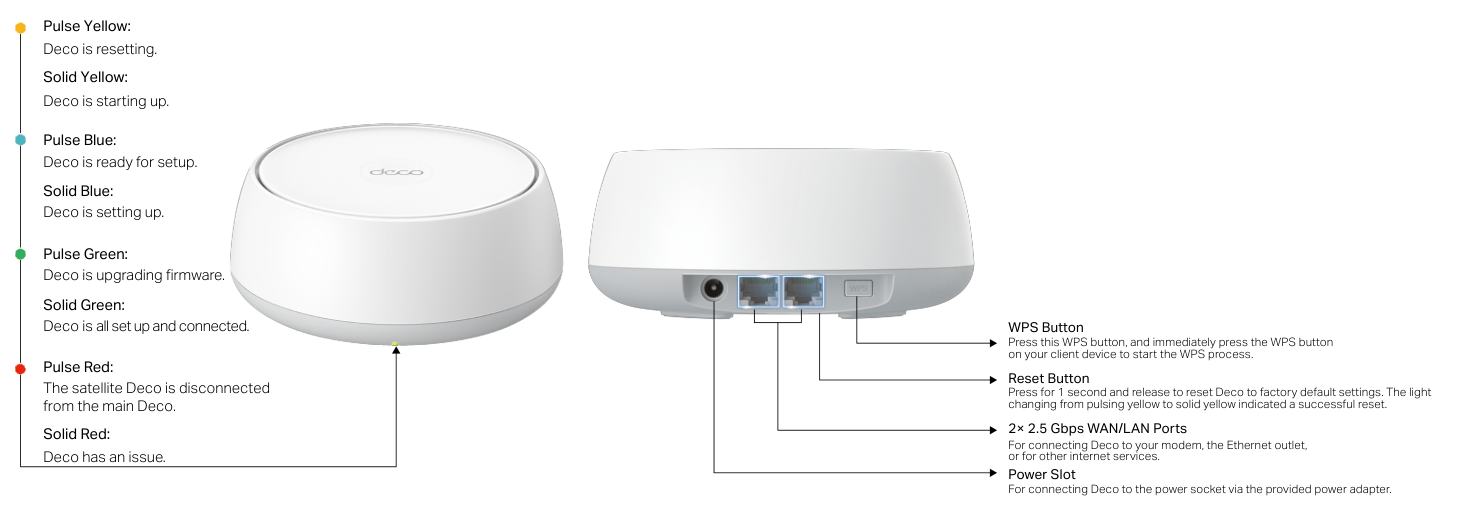
Diagram key
- Pulse Yellow: Deco is resetting.
- Solid Yellow: Deco is starting up.
- Pulse Blue: Deco is ready for setup.
- Solid Blue: Deco is setting up.
- Pulse Green: Deco is upgrading firmware.
- Solid Green: Deco is all set up and connected.
- Pulse Red: The satellite Deco is disconnected from the main Deco.
- Solid Red: Deco has an issue.
- WPS Button: Press this button, then immediately press the client’s WPS button to start WPS.
- Reset Button: Press for 1 second and release to restore factory defaults. Pulsing yellow changing to solid yellow indicates success.
- Two 2.5 Gbps WAN/LAN Ports: Connect to the modem, an Ethernet outlet or other internet services.
- Power Slot: Connect to a power socket using the supplied power adapter.
Pulse Yellowdeco is resetting
Deco is resetting.
Solid Yellowdeco is starting up
Deco is starting up.
Pulse Bluedeco is ready for setup
Deco is ready for setup.
Solid Bluedeco is setting up
Deco is setting up.
Pulse Greendeco is upgrading firmware
Deco is upgrading firmware.
Solid Greendeco is all set up and connected
Deco is all set up and connected.
Pulse Redthe satellite Deco is disconnected from the main Deco
The satellite Deco is disconnected from the main Deco.
Solid Reddeco has an issue
Deco has an issue.
Troubleshooting
Find the problem you are experiencingMain Deco setup: We couldn’t find Deco1 check
- Main Deco setup: We couldn’t find Deco
- Use TP-Link FAQ 2239 or its main-Deco discovery video, as linked from the official user guide. If the problem persists, contact TP-Link support.
Satellite setup: We couldn’t find another Deco1 check
- Satellite setup: We couldn’t find another Deco
- Use TP-Link FAQ 1447 or its satellite-Deco discovery video, as linked from the official user guide. If the problem persists, contact TP-Link support.
Setup stuck on Testing Internet Connection1 check
- Setup stuck on Testing Internet Connection
- Use TP-Link FAQ 2239 or its Testing Internet Connection video linked from the official user guide. If the problem persists, contact TP-Link support.
Wireless devices cannot connect to Deco1 check
- Wireless devices cannot connect to Deco
- Use TP-Link FAQ 2718, linked from the official user guide. If the problem persists, contact TP-Link support.
Deco suddenly loses internet access1 check
- Deco suddenly loses internet access
- Use TP-Link FAQ 2428, linked from the official user guide. If the problem persists, contact TP-Link support.
Finding a suitable spot for Deco1 check
- Finding a suitable spot for Deco
- Use TP-Link FAQ 1446, linked from the official user guide. If the problem persists, contact TP-Link support.
Deco app does not work properly1 check
- Deco app does not work properly
- Use TP-Link FAQ 1456, linked from the official user guide. If the problem persists, contact TP-Link support.
Guides
Appearance
Instructions from the manualReset Deco to factory defaultsView
Press the Reset button for 1 second and release to restore factory default settings. A change from pulsing yellow to solid yellow indicates a successful reset.
Connect a client using the WPS buttonView
Press the WPS button on Deco. Immediately press the WPS button on your client device to start the WPS process.
Set up your deco
Instructions from the manualSet up the Deco network20 steps
- Download TP-Link Deco from Google Play or the App Store, or scan the QR code in the manual.
- Install it on your Android or iOS phone or tablet.
- Open the app and log in with your TP-Link ID, or create an ID first.
- If you forgot the login password, tap Forgot Password? and follow the app to reset it.
- Search for and select your Deco model.
- If you have multiple Deco models, tap the question below the search box for guidance on maximizing the overall network.
- Power off your modem.
- Connect Deco to the modem and power both on.
- If you have no modem, connect Deco directly to the Ethernet outlet.
- Wait until Deco’s LED pulses blue; your phone or tablet will then connect to its default Wi-Fi automatically.
- Select or customize Deco’s location; that location becomes its name.
- Select your internet connection type and enter its information.
- Contact your internet service provider if unsure.
- Create a Wi-Fi network name and password for connecting your devices.
- The illustrated password rule requires at least 8 characters and recommends a combination of letters, numbers and symbols.
- Set the automatic update time so Deco can update to the latest firmware.
- The illustrated note says that if anyone is using the internet at that time, the update is rescheduled for the next day.
- Connect your phone or tablet to Deco’s Wi-Fi to continue setup.
- Setup is complete.
- Connect your devices to the Deco network and add more Decos if you have any.
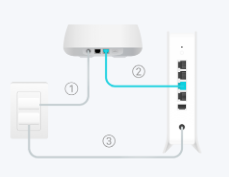
Diagram key
- 1: Power connection from Deco to its supplied adapter.
- 2: Ethernet connection from the modem’s LAN port to either Ethernet port on Deco.
- 3: Power connection for the modem.
Rf exposure information
Instructions from the manualMaintain the RF separation distanceView
Use Deco at least 20 cm from your body.
National restrictions
Instructions from the manualUse Deco indoors in the UK and EU4 steps
- Use this Deco indoors only in Great Britain, EU member states, EFTA countries and Northern Ireland.
- The regulatory information also prohibits installation and use in road vehicles, trains and aircraft on 5250–5350 MHz and 5470–5725 MHz, and prohibits unmanned-aircraft use on 5470–5725 MHz.
- On 5150–5250 MHz, indoor use is inside buildings only, with no road-vehicle or train-carriage use.
- The band-level limited-outdoor wording does not remove this model’s indoor-only national restrictions.
Safety information
Instructions from the manualSafe operation and when to stop10 steps
- Keep Deco away from water, fire, humidity and hot environments.
- Do not disassemble, repair or modify it; contact TP-Link for service.
- Do not use damaged chargers or USB cables, or chargers other than those recommended.
- Use only manufacturer-supplied power supplies in the original package; contact TP-Link if you have questions.
- Do not use the device where wireless devices are prohibited.
- Keep the adapter near the equipment and easily accessible.
- Operate at 0–40°C (32–104°F).
- Keep Deco and its power adapter more than 15 cm (6 inches) from pacemakers and other implanted medical devices.
- If interference is suspected, switch Deco off and consult your physician for advice specific to the implanted device.
- Read and follow the safety information and use the product carefully; improper use can cause accidents or damage.
Recycling
Instructions from the manualRecycle electrical and electronic equipment2 steps
- The crossed-out wheeled-bin marking identifies WEEE collection.
- Give the product to a competent recycling organization or to a retailer when buying new electrical or electronic equipment.
Getting started
Instructions from the manualStay online during app download and loginView
Remain online using Wi-Fi or mobile data while downloading the app and logging in. Download TP-Link Deco for iOS or Android and follow the app through setup.
For indoor decos:
Instructions from the manualFollow the quick guide’s indoor power precautions8 steps
- For this indoor Deco, keep it away from fire and hot environments.
- Do not disassemble, repair or modify it; contact TP-Link for service.
- Do not use it where wireless devices are prohibited.
- Do not use damaged chargers or USB cables, or chargers other than those recommended.
- Keep the power adapter or power-supply-cord plug near the equipment and easily accessible.
- Use only manufacturer-supplied power supplies in the original package; consult the model user manual for applicable supplies and contact TP-Link with questions.
- For products powered by a power-supply cord with a three-pin plug, connect to an earthed wall outlet.
- Read and follow the safety information and use the product carefully; improper use can cause accidents or damage.
Model details
Model and compatibility
- Ports and controls
- Two 2.5 Gbps WAN/LAN ports, WPS button, power slot, Reset button and status LED.
- Operating temperature
- 0–40°C (32–104°F).
Deco BE25 Setup Guide
- Accessible setup
- The Deco app offers increased contrast, screen orientation changes and larger fonts. Consult TP-Link’s Accessibility Support for additional guidance.
- Package contents
- The package contains Deco units, power adapters, an Ethernet cable and user guides. Unit and adapter quantities depend on the pack purchased.
- Connect and remove an Ethernet cable
- Align the rectangular cable connector with the Ethernet port and push until you hear or feel a click. Press its small lever-like clip down when removing the cable.
- Place Deco
- Place Deco with its foot pads down and its ports at the back. If it has no foot pads, place the heat vents down.
- Identify ports and buttons
- The circular power slot and square auto-sensing WAN/LAN Ethernet ports are on the back. The Reset button is a small round hole on the bottom; the WPS button is a raised rectangle on the back.
- Product label and LED
- The bottom label supplies the default network name, MAC address and default-Wi-Fi QR code. The LED is at the bottom of the front; network status is also available in the Deco app.
- Reset restart time
- After pressing Reset for 1 second and releasing, wait about 2 minutes for Deco to restart.
- First setup or setup after reset
- Wait 2 minutes for Deco to restart, or wait until its LED flashes blue, before using the Deco app for first setup or setup after a reset. Stay online by Wi-Fi or mobile data during app download and login.
- Internet unavailable
- Open the Deco app and follow its troubleshooting instructions. If the problem persists, contact TP-Link support.
Related reviewed instructions
Manuals and sources
- TP-Link operation manual
- TP-Link model support and details
- TP-Link manual download listing
- TP-Link operation manual
- Troubleshooting resource linked by the official BE25 user guide
- Troubleshooting resource linked by the official BE25 user guide
- Troubleshooting resource linked by the official BE25 user guide
- TP-Link official Deco BE25 accessible setup guide
- Troubleshooting resource linked by the official BE25 user guide
- Troubleshooting resource linked by the official BE25 user guide
- Troubleshooting resource linked by the official BE25 user guide
- Troubleshooting resource linked by the official BE25 user guide
- Troubleshooting resource linked by the official BE25 user guide
- Troubleshooting resource linked by the official BE25 user guide
- Troubleshooting resource linked by the official BE25 user guide