MODEL REFERENCE
TP-Link Deco BE67 V1.60
8 errors · 7 troubleshooting topics · 8 guides

The checks and guides below come from the official manuals for this model.
No matches for this wording. Try a light name, error code or a shorter phrase.
Errors and indicators
Light patterns and messages documented in the manualFind the indicator lights
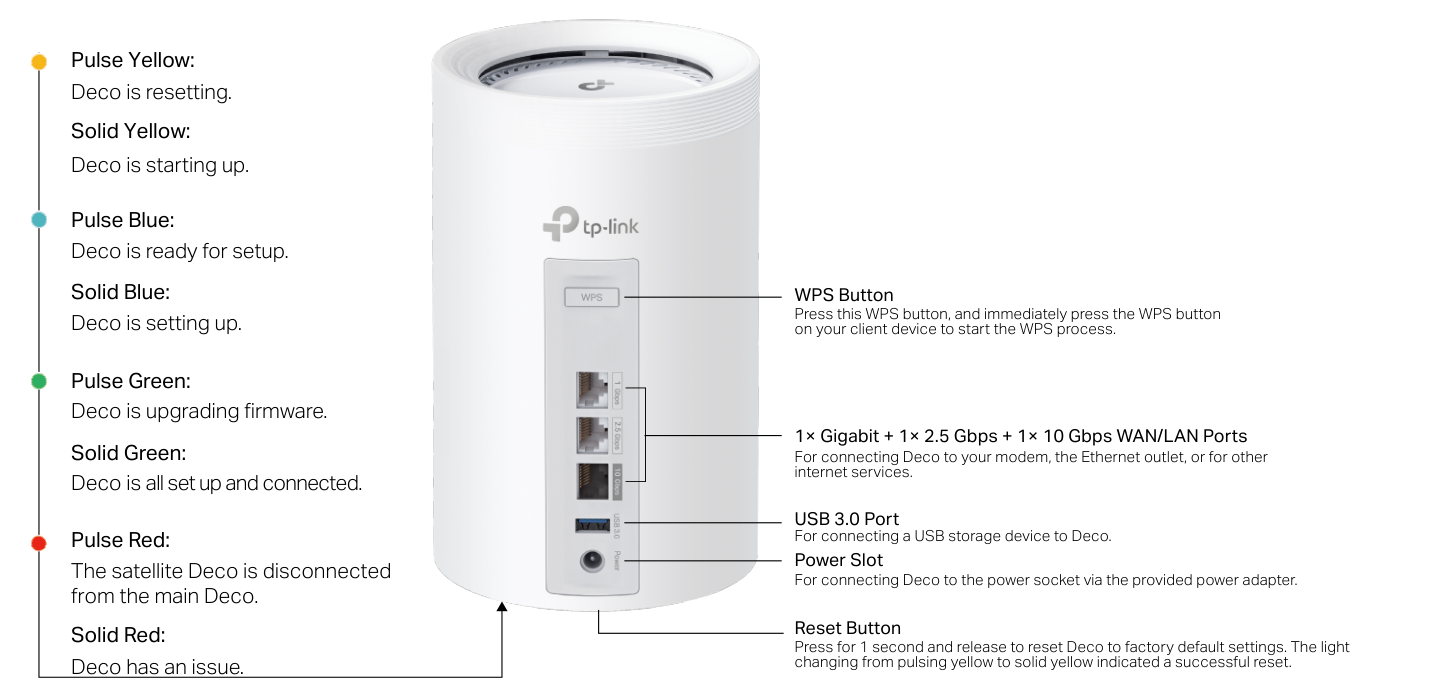
Diagram key
- Pulse Yellow: Deco is resetting.
- Solid Yellow: Deco is starting up.
- Pulse Blue: Deco is ready for setup.
- Solid Blue: Deco is setting up.
- Pulse Green: Deco is upgrading firmware.
- Solid Green: Deco is all set up and connected.
- Pulse Red: The satellite Deco is disconnected from the main Deco.
- Solid Red: Deco has an issue.
- WPS Button: Press WPS, then immediately press WPS on the client device.
- WAN/LAN Ports: One Gigabit, one 2.5 Gbps and one 10 Gbps port connect to a modem, Ethernet outlet or other internet service.
- USB 3.0 Port: Connect a USB storage device.
- Power Slot: Connect to a power socket using the provided power adapter.
- Reset Button: Press for 1 second and release to restore factory defaults; pulsing yellow changing to solid yellow indicates success.
Pulse Yellowdeco is resetting
Deco is resetting.
Solid Yellowdeco is starting up
Deco is starting up.
Pulse Bluedeco is ready for setup
Deco is ready for setup.
Solid Bluedeco is setting up
Deco is setting up.
Pulse Greendeco is upgrading firmware
Deco is upgrading firmware.
Solid Greendeco is all set up and connected
Deco is all set up and connected.
Pulse Redthe satellite Deco is disconnected from the main Deco
The satellite Deco is disconnected from the main Deco.
Solid Reddeco has an issue
Deco has an issue.
Troubleshooting
Find the problem you are experiencingMain Deco setup: We couldn’t find Deco1 check
- Main Deco setup: We couldn’t find Deco
- Use TP-Link FAQ 2239 or its main-Deco discovery video, as linked from the official user guide. If the problem persists, contact TP-Link support.
Satellite setup: We couldn’t find another Deco1 check
- Satellite setup: We couldn’t find another Deco
- Use TP-Link FAQ 1447 or its satellite-Deco discovery video, as linked from the official user guide. If the problem persists, contact TP-Link support.
Setup stuck on Testing Internet Connection1 check
- Setup stuck on Testing Internet Connection
- Use TP-Link FAQ 2239 or its Testing Internet Connection video linked from the official user guide. If the problem persists, contact TP-Link support.
Wireless devices cannot connect to Deco1 check
- Wireless devices cannot connect to Deco
- Use TP-Link FAQ 2718, linked from the official user guide. If the problem persists, contact TP-Link support.
Deco suddenly loses internet access1 check
- Deco suddenly loses internet access
- Use TP-Link FAQ 2428, linked from the official user guide. If the problem persists, contact TP-Link support.
Finding a suitable spot for Deco1 check
- Finding a suitable spot for Deco
- Use TP-Link FAQ 1446, linked from the official user guide. If the problem persists, contact TP-Link support.
Deco app does not work properly1 check
- Deco app does not work properly
- Use TP-Link FAQ 1456, linked from the official user guide. If the problem persists, contact TP-Link support.
Guides
Appearance
Instructions from the manualReset Deco to factory defaultsView
Press the Reset button for 1 second and release to restore factory default settings. Pulsing yellow changing to solid yellow indicates a successful reset.
Connect a client using the WPS buttonView
Press the WPS button on Deco. Immediately press the WPS button on the client device to start WPS.
Connect USB storageView
Connect a USB storage device to the USB 3.0 port.
Set up your deco
Instructions from the manualSet up the Deco network21 steps
- Download TP-Link Deco from Google Play or the App Store, or scan the manual QR code.
- Install it on an Android or iOS smartphone or tablet.
- Open the app and log in with a TP-Link ID, or create one first.
- If the login password is forgotten, tap Forgot Password? and follow the app to reset it.
- Tap + at the top right of the homepage and select Create a Network.
- Plug in Deco and wait until its LED pulses blue; the phone or tablet connects automatically.
- Bluetooth can be enabled on the phone or tablet beforehand for quicker setup.
- Power off the modem.
- Connect Deco to the modem and power the modem on.
- The illustrated instruction requires restarting the modem by turning it off and on.
- Without a modem, connect Deco directly to the Ethernet outlet; the illustrated alternative also names a network-providing router or switch LAN port.
- Select or customize a location for Deco; the location becomes its name.
- Select the internet connection type and enter the information.
- Contact the internet service provider if unsure.
- Create the Wi-Fi network name and password used to connect devices.
- The illustrated password rule requires at least 8 characters and recommends combining letters, numbers and symbols.
- Create the separate 6 GHz Wi-Fi network name and password used to connect devices to that network; its illustrated password minimum is also 8 characters.
- Set an automatic update time for the latest firmware.
- The illustrated note says that if anyone uses the internet at that time, the update is rescheduled for the next day.
- Setup is complete.
- Connect devices to the Deco network and add further Deco units, if any, to extend it.
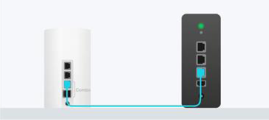
Diagram key
- Deco: Deco connects through a WAN/LAN Ethernet port.
- Modem: The modem supplies the internet connection.
- Turquoise cable: The Ethernet cable joins Deco to the modem.
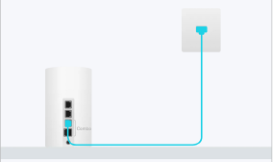
Diagram key
- Deco: Deco connects through a WAN/LAN Ethernet port.
- LAN port or internet outlet: The other endpoint is a network-providing router or switch LAN port, or internet outlet, as named by the setup illustration.
- Turquoise cable: The Ethernet cable joins the endpoints.
Fcc compliance information statement
Instructions from the manualRadio or television interference: FCC notice3 steps
- Determine whether the equipment causes interference by switching it off and on.
- Try one or more of these measures: reorient or relocate the receiving antenna; increase separation between equipment and receiver; connect the equipment to an outlet on a different circuit from the receiver; consult the dealer or an experienced radio/TV technician.
- Unauthorized changes or modifications can void authority to operate the equipment.
Fcc rf radiation exposure statement
Instructions from the manualFCC indoor placement and RF separation5 steps
- Keep at least 20 cm between the transmitter antennas and all persons.
- Do not co-locate or operate this device and its antenna with another antenna or transmitter.
- Use indoors only.
- Operation is prohibited on oil platforms, cars, trains, boats and aircraft, except on large aircraft flying above 10,000 feet in the 5.925–6.425 GHz band.
- Do not use 5.925–7.125 GHz transmitters to control or communicate with unmanned aircraft systems.
Safety information
Instructions from the manualSafe operation and when to stop10 steps
- Keep Deco away from water, fire, humidity and hot environments.
- Do not disassemble, repair or modify it; contact TP-Link for service.
- Do not use damaged chargers or USB cables, or chargers other than recommended.
- Use only manufacturer-supplied power supplies from the original package; contact TP-Link with questions.
- Do not use the device where wireless devices are prohibited.
- Install its adapter near the equipment and keep it easily accessible.
- Operate at 0–40°C (32–104°F).
- Keep the product and its power adapter more than 15 cm (6 inches) from pacemakers and other implanted medical devices.
- If interference is suspected, turn it off and consult a physician for information specific to the implanted device.
- Read and follow the safety information and handle the product carefully; improper use can cause accidents or damage.
Recycling
Instructions from the manualRecycle electrical and electronic equipment2 steps
- The crossed-out wheeled-bin marking identifies WEEE collection.
- Give the product to a competent recycling organization or to a retailer when buying new electrical or electronic equipment.
Model details
Model and compatibility
- Ports and controls
- One Gigabit, one 2.5 Gbps and one 10 Gbps WAN/LAN port; USB 3.0 port, WPS button, Reset button, power slot and status LED.
- Operating temperature
- 0–40°C (32–104°F).
Related reviewed instructions
Manuals and sources
- TP-Link operation manual
- TP-Link model support and details
- TP-Link manual download listing
- Troubleshooting resource linked by the official BE67 guide: 2239
- Troubleshooting resource linked by the official BE67 guide: 1447
- Troubleshooting resource linked by the official BE67 guide: 2718
- Troubleshooting resource linked by the official BE67 guide: 2428
- Troubleshooting resource linked by the official BE67 guide: 1446
- Troubleshooting resource linked by the official BE67 guide: 1456
- Troubleshooting resource linked by the official BE67 guide: 2HYuEYS9XJM
- Troubleshooting resource linked by the official BE67 guide: iVgDzoo16T4
- Troubleshooting resource linked by the official BE67 guide: OSUrGdWH-i0