MODEL REFERENCE
TP-Link Deco X20 V3
8 errors · 7 troubleshooting topics · 10 guides

The checks and guides below come from the official manuals for this model.
No matches for this wording. Try a light name, error code or a shorter phrase.
Errors and indicators
Light patterns and messages documented in the manualFind the indicator lights
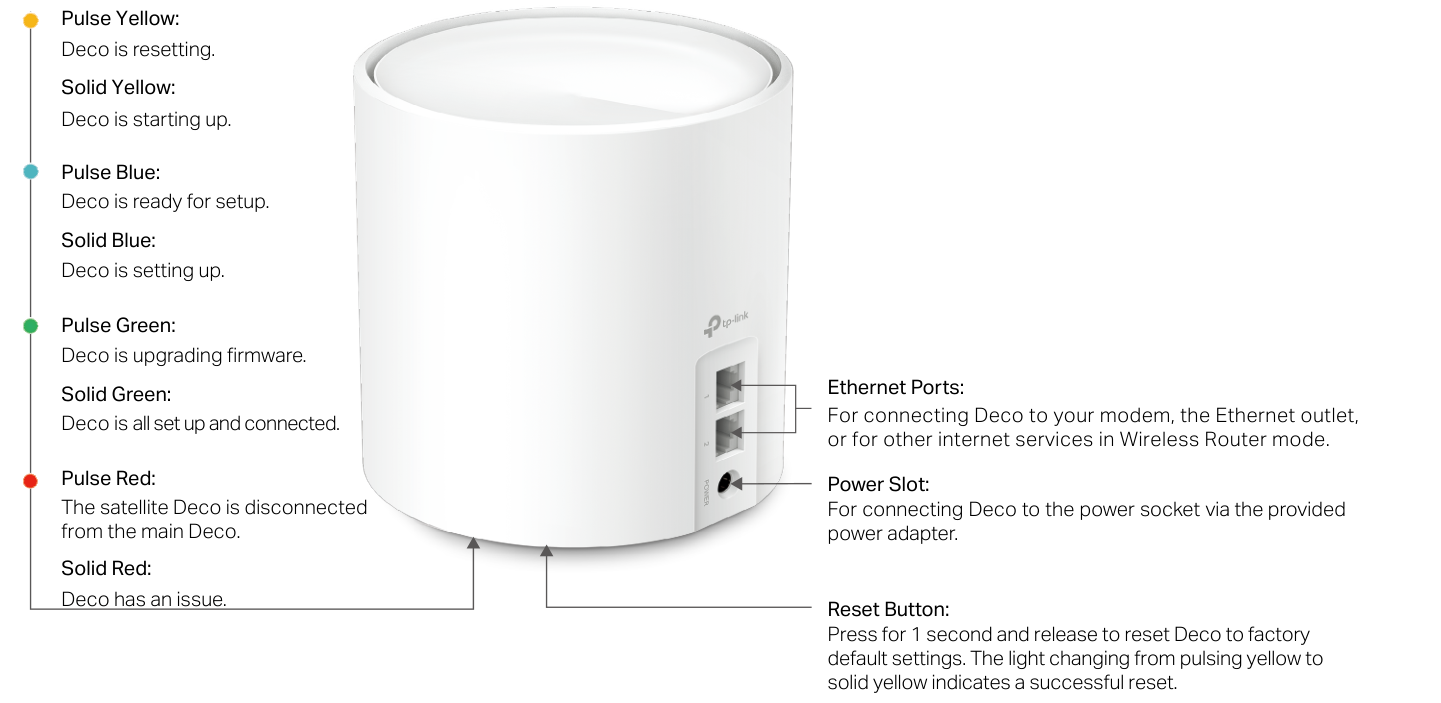
Diagram key
- Pulse Yellow: Deco is resetting.
- Solid Yellow: Deco is starting up.
- Pulse Blue: Deco is ready for setup.
- Solid Blue: Deco is setting up.
- Pulse Green: Deco is upgrading firmware.
- Solid Green: Deco is all set up and connected.
- Pulse Red: The satellite Deco is disconnected from the main Deco.
- Solid Red: Deco has an issue.
- Ethernet Ports: The two sockets connect to a modem, Ethernet outlet or other internet service in Wireless Router mode.
- Power Slot: Connect to a power socket using the provided power adapter.
- Reset Button: Press for 1 second and release to restore factory defaults; pulsing yellow changing to solid yellow indicates success.
Pulse Yellowdeco is resetting
Deco is resetting.
Solid Yellowdeco is starting up
Deco is starting up.
Pulse Bluedeco is ready for setup
Deco is ready for setup.
Solid Bluedeco is setting up
Deco is setting up.
Pulse Greendeco is upgrading firmware
Deco is upgrading firmware.
Solid Greendeco is all set up and connected
Deco is all set up and connected.
Pulse Redthe satellite Deco is disconnected from the main Deco
The satellite Deco is disconnected from the main Deco.
Solid Reddeco has an issue
Deco has an issue.
Troubleshooting
Find the problem you are experiencingMain Deco setup: We couldn’t find Deco1 check
- Main Deco setup: We couldn’t find Deco
- Use TP-Link FAQ 2239 or its main-Deco discovery video, as linked from the official user guide. If the problem persists, contact TP-Link support.
Satellite setup: We couldn’t find another Deco1 check
- Satellite setup: We couldn’t find another Deco
- Use TP-Link FAQ 1447 or its satellite-Deco discovery video, as linked from the official user guide. If the problem persists, contact TP-Link support.
Setup stuck on Testing Internet Connection1 check
- Setup stuck on Testing Internet Connection
- Use TP-Link FAQ 2239 or its Testing Internet Connection video linked from the official user guide. If the problem persists, contact TP-Link support.
Wireless devices cannot connect to Deco1 check
- Wireless devices cannot connect to Deco
- Use TP-Link FAQ 2718, linked from the official user guide. If the problem persists, contact TP-Link support.
Deco suddenly loses internet access1 check
- Deco suddenly loses internet access
- Use TP-Link FAQ 2428, linked from the official user guide. If the problem persists, contact TP-Link support.
Finding a suitable spot for Deco1 check
- Finding a suitable spot for Deco
- Use TP-Link FAQ 1446, linked from the official user guide. If the problem persists, contact TP-Link support.
Deco app does not work properly1 check
- Deco app does not work properly
- Use TP-Link FAQ 1456, linked from the official user guide. If the problem persists, contact TP-Link support.
Guides
Appearance
Instructions from the manualReset Deco to factory defaultsView
Press the Reset button for 1 second and release to restore factory default settings. Pulsing yellow changing to solid yellow indicates a successful reset.
Set up your deco
Instructions from the manualSet up the Deco network20 steps
- Download TP-Link Deco from Google Play or the App Store, or scan the manual QR code.
- Install it on an Android or iOS smartphone or tablet.
- Open the app and log in with a TP-Link ID, or create one first.
- If the login password is forgotten, tap Forgot Password? and follow the app to reset it.
- Search for and select the Deco model.
- If you have more than one model, tap the question below the search box for guidance on maximizing the network.
- Power off the modem.
- Connect Deco to the modem and power both on.
- The illustrated connection uses the modem LAN port and either Deco Ethernet port.
- Without a modem, connect Deco directly to the Ethernet outlet.
- Wait until the Deco LED pulses blue; the phone or tablet then connects automatically to its default Wi-Fi.
- Select or customize a location for Deco; the location becomes its name.
- Select the internet connection type and enter the information.
- Contact the internet service provider if unsure.
- Create the Wi-Fi network name and password used to connect devices.
- The illustrated password rule requires at least 8 characters and recommends combining letters, numbers and symbols.
- Connect the phone or tablet to the Deco Wi-Fi.
- Setup is complete.
- Connect devices to the network.
- Plug in the other included Decos; they automatically join the network within 2 minutes.
Fcc compliance information statement
Instructions from the manualRadio or television interference: FCC notice3 steps
- Determine whether the equipment causes interference by switching it off and on.
- Try one or more of these measures: reorient or relocate the receiving antenna; increase separation between equipment and receiver; connect the equipment to an outlet on a different circuit from the receiver; consult the dealer or an experienced radio/TV technician.
- Unauthorized changes or modifications can void authority to operate the equipment.
Fcc rf radiation exposure statement
Instructions from the manualUS FCC RF separation2 steps
- For US FCC mobile configurations, keep at least 20 cm between the transmitter antennas and all persons.
- Do not co-locate or operate this device and its antenna with another antenna or transmitter.
National restrictions
Instructions from the manualEuropean and UK indoor-use restrictions2 steps
- The EU notice requires 20 cm between the device and the body.
- The national restrictions permit use only indoors in EU member states, EFTA countries and Northern Ireland, and only indoors in Great Britain.
Radiation exposure statement:
Instructions from the manualCanadian indoor-band and RF separation notice2 steps
- The Canadian notice restricts operation in the 5150–5250 MHz band to indoor use to reduce potential interference to co-channel mobile satellite systems.
- For the Canadian IC notice, install and operate with at least 20 cm between the radiator and the body.
Ncc notice & bsmi notice:
Instructions from the manualRegional NCC radio-interference notice4 steps
- The regional NCC notice prohibits unapproved frequency, power or design changes.
- Do not interfere with flight safety or lawful communications.
- If interference is found, stop using the equipment immediately and correct the interference before resuming.
- Accept interference from lawful communications and industrial, scientific and medical radio equipment, and avoid affecting nearby radar systems.
Safety information
Instructions from the manualSafe operation and when to stop10 steps
- Keep Deco away from water, fire, humidity and hot environments.
- Do not disassemble, repair or modify it; contact TP-Link for service.
- Do not use damaged chargers or USB cables, or chargers other than recommended.
- Use only manufacturer-supplied power supplies from the original package; contact TP-Link with questions.
- Do not use the device where wireless devices are prohibited.
- Install its adapter near the equipment and keep it easily accessible.
- Keep the product and its power adapter more than 15 cm (6 inches) from pacemakers and other implanted medical devices.
- If interference is suspected, turn it off and consult a physician for information specific to the implanted device.
- Operate at 0–40°C (32–104°F).
- Read and follow the safety information and handle the product carefully; improper use can cause accidents or damage.
安全諮詢及注意事項
Instructions from the manualRegional safety notice: cleaning and ventilation7 steps
- The Chinese-language regional safety notice says to use the power type specified for the product.
- Disconnect power before cleaning.
- Do not clean with liquids, sprays or a wet cloth.
- Keep moisture and liquids away.
- Do not block or cover the ventilation openings.
- Keep it away from heat sources and do not place it in an enclosed location without normal ventilation.
- Do not open the case or repair it yourself; contact the manufacturer or agent if it fails.
Recycling
Instructions from the manualRecycle electrical and electronic equipment2 steps
- The crossed-out wheeled-bin marking identifies WEEE collection.
- Give the product to a competent recycling organization or to a retailer when buying new electrical or electronic equipment.
Model details
Model and compatibility
- Ports and controls
- Two RJ-45 Ethernet ports, Reset button, power slot and status LED.
- Operating temperature
- 0–40°C (32–104°F).
Before setup
Remain online using Wi-Fi or mobile data during app download and login.
Related reviewed instructions
Manuals and sources
- TP-Link operation manual
- TP-Link model support and details
- TP-Link manual download listing
- Troubleshooting resource linked by the official X20 guide: 2239
- Troubleshooting resource linked by the official X20 guide: 1447
- Troubleshooting resource linked by the official X20 guide: 2718
- Troubleshooting resource linked by the official X20 guide: 2428
- Troubleshooting resource linked by the official X20 guide: 1446
- Troubleshooting resource linked by the official X20 guide: 1456
- Troubleshooting resource linked by the official X20 guide: support
- Troubleshooting resource linked by the official X20 guide: 2HYuEYS9XJM
- Troubleshooting resource linked by the official X20 guide: iVgDzoo16T4
- Troubleshooting resource linked by the official X20 guide: OSUrGdWH-i0
- Exact US V3.0/V3.20 datasheet
- Shared quick installation guide
- Generic Deco app guide; functions vary by model and software