MODEL REFERENCE
Brother ADS-1200
14 errors · 22 troubleshooting topics
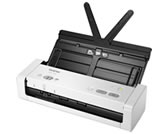
The checks and guides below come from the official manuals for this model.
No matches for this wording. Try a light name, error code or a shorter phrase.
Error codes
Messages and indicator states from the manual Document Jama document is jammed
Clear the jam and select Long Paper for an unusually long original.
Pick Up Document Errorthe document did not feed
Open the front cover, remove the document, close the cover, and reload it.
Front Cover Openthe front cover is open
Close the front cover before scanning.
Access Errorthe scanner cannot access the chosen destination
Connect the USB cable for Scan to PC, or insert the USB drive for Scan to USB.
Unusable USB DeviceuSB storage cannot be used on bus power
Connect the scanner to an AC outlet before scanning to a USB drive.
Unusable Devicethe inserted USB device is unsupported
Remove the unsupported USB device; use AC power for USB storage.
Too Many Files on USBthe USB drive has too many files
Delete unused files or use a USB drive with available space.
Feed Selector Errorthe feed selector or loaded media is incorrect
Set the selector for the ADF or card slot and load only the one being scanned.
Plastic Card Jama plastic card is jammed
Remove the card and adjust the card slot guide before reinserting it.
Updating the Firmwarea firmware update is running
Wait until the firmware update finishes.
Scheduled Maintenancethe maintenance counter passed 5,000
Clean the scanner, then reset the maintenance counter with Remote Setup.
Pickup Roller or Separation Pad Limita feed component reached its use limit
Check its remaining life, replace the worn component, and reset the roller counter.
Replace Separation Padthe separation pad needs replacement
Replace the separation pad using the procedure in the manual.
Clean the Sensorsthe sensors need cleaning
Clean the sensors using the manual's procedure.
Troubleshooting
Find the problem you are experiencingTWAIN or WIA errors appear when starting to scan. (Windows)View
Make sure the Brother TWAIN or WIA driver is selected as the primary source in your scanning application.
TWAIN errors appear when starting to scan. (Mac)View
Make sure the Brother TWAIN driver is selected as the primary source in your application.
Vertical lines are seen in the scanned imageView
Clean the glass strips inside the machine.
The scanned image is missingView
Gently adjust the Paper Guides to fit the width of your document.
The scanned image is skewedView
Gently adjust the Paper Guides to fit the width of your document.
Scanning is too slowView
Decrease the scanner resolution.
The document was not fedView
Clean the Separation Pad and Pick Up Roller.
The document is jammedView
Clean the Separation Pad and Pick Up Roller.
The scan quality is poorView
Clean the Separation Pad and Pick Up Roller.
Bleedthrough is seen in the scanned dataView
Select the Remove Bleed-through / Pattern / Remove Background Color check box.
Colors in the scanned data are darkView
Do one of the following: • Select the Remove Bleed-through / Pattern / Remove Background Color check box, and then scan from your computer.
A page that is not a blank page is skippedView
Set Skip Blank Page to Off.
Cannot scan a long documentView
Select Long Paper for the document size.
A multifeed occursView
Load your document correctly, and then try again.
Cannot scan to a computer from the machineView
Install a scanning application (for example, Brother iPrint&Scan).
The plastic card is jammedView
Remove the plastic card.
The plastic card was not fedView
Remove the document from the ADF.
Cannot scan to a USB flash drive in Bus Power ModeView
Connect your scanner to an AC power outlet, and then try to scan.
The computer has detected a USB flash driveView
The computer detects the USB flash drive that is inserted into the machine.
The machine is in Sleep Mode (power save mode)View
Do one of the following: • Press .
The machine is not turned onView
Turn off the machine, wait 60 seconds, and then turn it on again.
Your computer cannot find the machine via USB interfaceView
Install the scanner driver.