MODEL REFERENCE
Brother FAX-2940
28 errors · 39 troubleshooting topics
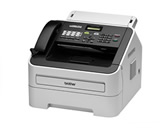
The checks and guides below come from the official manuals for this model.
No matches for this wording. Try a light name, error code or a shorter phrase.
Errors and messages
Shown on the machine display Cartridge Errortoner cartridge problem
Reseat the toner cartridge in the drum assembly, then reinstall the assembly.
Comm.Errorfax communication failed
Send the fax again or test another telephone line; persistent line faults need the telephone company.
Connection Failpolling connection failed
Check that the other fax machine is configured for polling, then try again.
Cooling Down Wait for a whilefuser or drum temperature problem
Let the machine cool with its vents clear. Wait for it to resume automatically.
Cover is Opena cover is open3 checks
Disconnectedthe fax call ended
Try sending or receiving the fax again.
Document Jamdocument jam
Remove the jammed document and scraps from the feeder, then reload the document.
DR Mode in Usedistinctive Ring is active
Turn Distinctive Ring off before changing the receive mode.
Drum Errordrum unit needs attention
Clean or replace the drum unit as indicated, then reset its counter after replacement.
Drum Stopdrum unit needs attention
Clean or replace the drum unit as indicated, then reset its counter after replacement.
EL Errormechanical fault
Protect any stored faxes, restart the machine, and contact Brother if the fault remains.
Fuser Errorfuser or drum temperature problem
Turn the machine off, wait a few seconds, and turn it on again. Leave it on for 15 minutes; contact Brother if the error returns.
Init Unable XXmechanical fault
Turn the machine off, wait a few seconds, and turn it on again. Leave it on for 15 minutes; contact Brother if the error returns.
Jam Insidepaper jam
Open the indicated path, remove the jammed paper carefully, and close the covers before retrying.
Jam Rearpaper jam
Open the indicated path, remove the jammed paper carefully, and close the covers before retrying.
Jam Traypaper jam
Open the indicated path, remove the jammed paper carefully, and close the covers before retrying.
Manual Feedmanual feed slot is empty
Load a sheet in the manual feed slot or select another paper source.
No Paperpaper is missing or loaded incorrectly
Reload the paper tray, set the guides to the paper size, and retry.
No Response/Busyfax number is busy or unanswered
Verify the number and place the call again.
No Tonertoner supply needs attention
Reseat or replace the toner cartridge, then retry the job.
Out of Memorymemory is full
Finish or cancel the current job, print or clear stored faxes, and retry.
Print Unable XXmechanical fault
Turn the machine off, wait a few seconds, and turn it on again. Leave it on for 15 minutes; contact Brother if the error returns.
Replace Drumdrum unit needs attention
Drum unit needs attention: Clean or replace the drum unit as indicated, then reset its counter after replacement.
Replace Tonertoner supply needs attention
Reseat or replace the toner cartridge, then retry the job.
Scan Unable XXmechanical fault
Turn the machine off, wait a few seconds, and turn it on again. Leave it on for 15 minutes; contact Brother if the error returns.
Size mismatchpaper size mismatch
Load the required paper size and update the paper-size setting.
Toner Endedtoner supply needs attention
Reseat or replace the toner cartridge, then retry the job.
Toner Lowtoner supply needs attention
Reseat or replace the toner cartridge, then retry the job.
Troubleshooting
Find the problem you are experiencingDialing does not workView
Check for a dial tone and confirm that the telephone line cord is connected.
The machine does not answer when calledView
Select the correct receive mode, check the dial tone, and call the fax number to test the line.
Cannot receive a fax3 checks
- The telephone line may not be connected correctly.
- Check the line cord at the wall jack and the machine's LINE jack.
- The receive mode may not suit the line setup.
- Choose the receive mode that matches the devices and services on the line.
- Another device or service may answer first.
- Lower the fax ring delay or the answering machine's ring count, as applicable.
Poor sending qualityView
Send at Fine or S.Fine resolution; make a copy and clean the scanner if the copy is poor.
Transmission Verification Report says RESULT:NGView
Send the fax again. If the error continues, have the telephone line checked for noise or static.
Sent faxes are blankView
Load the original correctly in the document feeder.
Vertical black lines when sendingView
Clean the scanner glass strip to remove dirt or correction fluid.
The machine ‘hears’ a voice as a CNG toneView
Turn off Easy Receive if the machine mistakes voices or music for a fax call.
Sending a fax call to the machineView
From an extension phone, enter the Fax Receive Code when the fax call arrives, then hang up after the machine answers.
Custom features on a single lineView
Check whether services such as Call Waiting or Voice Mail are interfering with fax calls.
Cannot make a copyView
Switch to COPY mode and retry.
Vertical black line appears in copiesView
Clean the scanner glass strip and corona wire.
Copies are blankView
Load the original correctly in the document feeder.
The machine does not feed paper. The LCD shows No Paper or a Paper Jam messageView
Reload and straighten the paper, adjust the guides, then clear any jam.
Documents do not feed or skewed documentsView
Clean the document feed rollers.
What paper can I use?View
Use paper or other media approved for laser machines.
There is a paper jamView
Clear the jammed paper from the path identified by the machine.
Printed pages are curledView
Turn the paper stack over, check paper type and quality, then try again.
Printed pages are smearedView
Match the Paper Type setting to the loaded media and check its surface.
Printouts are too lightView
Turn off Toner Save when copying or printing received faxes.
The machine will not turn onView
Switch the machine off, unplug it, wait, then reconnect it.
FaintView
Spread the toner evenly by gently rocking the drum and toner assembly, then replace supplies if the print remains faint.
Gray backgroundView
Use suitable paper, check humidity and temperature, then replace the toner cartridge or drum if needed.
GhostView
Check paper type and the printer environment, then replace the drum if the repeated image remains.
Toner specksView
Use suitable paper and clean the drum; replace the drum if specks remain.
Hollow printView
Use smooth, suitable paper and check the selected paper type.
All blackView
Clean the drum corona wire and return its green tab to the home position.
White lines across the pageView
Use suitable paper, check the paper type setting, and clean the drum.
Lines across the pageView
Clean the drum corona wire and drum surface; replace the drum if lines remain.
White lines, bands or ribbing across the pageView
Check for high humidity or temperature, then replace the drum if the bands persist.
White Spots on black text and graphics at 94mm (3.71in.)View
Copy a blank sheet ten times and clean the drum surface if spots remain at regular intervals.
Black toner marks across the pageView
Clean the drum surface and check for adhesive from label sheets.
Black lines down the pageView
Clean the corona wire and return its green tab to the home position.
White lines down the pageView
Replace the toner cartridge, then the drum if the line remains.
Page skewedView
Reload the paper squarely and adjust the tray guides without squeezing the stack.
Curled or wavyView
Check the paper type and storage conditions; turn over the stack if needed.
Wrinkles or creasesView
Reload the paper correctly and check that its type and quality suit the machine.
Envelope creasesView
Lower both green envelope levers inside the back cover when printing envelopes.