MODEL REFERENCE
Brother DS-720D
3 errors · 21 troubleshooting topics · 2 guides
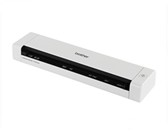
The checks and guides below come from the official manuals for this model.
No matches for this wording. Try a light name, error code or a shorter phrase.
Software error messages
Messages shown by the scanning software Calibration failed. Please reboot the machine.scanner calibration failed
Disconnect the Micro USB cable from the computer, reconnect it, and retry calibration with the calibration sheet inserted in the direction shown in the guide.
Please install scannerscanning software cannot detect the scanner
Check that the scanner is connected correctly and the USB cable is undamaged. Reinstall the scanner driver if the error persists after checking the connection.
The scan was aborted because the scanner is not powered on or not connected properly.scanning software cannot detect the scanner
Check that the scanner is connected correctly and the USB cable is undamaged. Reinstall the scanner driver if the error persists after checking the connection.
Troubleshooting
Find the problem you are experiencingScanner does not turn on1 check
- The supplied Micro USB Cable is not connected securely
- Connect the supplied Micro USB cable securely to both the scanner and computer.
Computer does not recognize the scanner1 check
- Causes may vary
- Disconnect and reconnect the supplied Micro USB cable at both ends.
Scans have black lines, blank areas, or poor quality1 check
- This problem occurs if the image quality between your scanner and computer is not balanced or if a foreign object, such as a paper clip or ripped paper, is stuck in the scanner
- Clear paper clips, scraps, and other objects from the feeder slot. Calibrate the scanner; if quality remains poor, clean it and calibrate again.
Part of the scanned image is missing2 checks
- The Document Guides are not adjusted to fit the width of the document
- Set the document guide against the document edges without bending the sheet.
- The settings are not suitable for your document. For example, a A4 document was fed when Letter was selected as document size
- Select the document’s actual paper size in the scanning software.
Scanning is too slow1 check
- The resolution is not suitable for your document
- Reduce the scanning resolution to improve speed.
Connected scanner does not feed the document3 checks
- Your document is not set correctly
- Feed the document until its leading edge touches the inside of the scanner.
- Your document is too thin or too thick
- Use a document within the manual’s size and thickness limits. If it meets those limits, check the USB connection and reinstall the scanner driver if needed.
- The scanner’s top cover is open
- Close the scanner’s top cover and retry.
Document is jammed2 checks
- Causes may vary
- Open the top cover and gently remove the document and any scraps.
- Your document is not acceptable for themachine (for example, if the paper is too long)
- Use a document within the scanner’s specifications and the supplied carrier sheet where appropriate.
Scanner gets warm1 check
- It is normal for your scanner to emit asmall amount of heat after prolonged use
- A little warmth after prolonged use is normal. If you notice an unusual smell or excessive heat, disconnect the Micro USB cable from the scanner and computer immediately.
Scan quality is poor3 checks
- Paper dust has accumulated inside your scanner
- Disconnect the USB cable at both ends.
- Open the top cover, gently wipe the glass and feed rollers with the supplied cleaning cloth, close the cover, and reconnect.
- Do not use alcohol or other solvents.
- Calibration needs to be performed
- Calibrate using the supplied calibration sheet in DSmobileCapture, under Setup, Options, Calibration on Windows, or Options, Calibration on Mac. Hold only the edges of the sheet.
- The scanner resolution is too low
- Increase the resolution in the scanning software.
Scanned colors are too dark2 checks
- The settings are not appropriate for thetype of document being scanned
- Adjust the image settings for the type of document being scanned.
- Calibration needs to be performed
- Calibrate using the supplied calibration sheet in DSmobileCapture, under Setup, Options, Calibration on Windows, or Options, Calibration on Mac. Hold only the edges of the sheet.
OCR does not work3 checks
- The scanner resolution is too low
- Increase the resolution in PaperPort 12SE on Windows or Presto! PageManager on Mac, as described in this guide.
- (Windows® users) Nuance PaperPort™ 12SE has not been installed on your computer
- Install the PaperPort 12SE OCR software supplied with the scanner for the Windows workflow described in this manual.
- (Macintosh users) Presto! PageManager has not been installed on your computer
- Install the Presto! PageManager software supplied with the scanner for the Mac workflow described in this manual.
Scanned image is skewed1 check
- The scanner’s Document Guide arenotadjusted to fit the width ofthedocument
- Set the document guide to the width of the sheet before scanning.
White vertical lines or stripes appear2 checks
- The scanner is under direct sunlight
- Move the scanner out of direct sunlight.
- A light source is near the scanner
- Move the scanner farther from the nearby light source.
Text shows through from the other side2 checks
- Your document is too thin
- Use paper within the scanner’s document specifications.
- The contrast setting is improper
- Increase contrast in the scanning software.
Scanning software cannot find the scanner1 check
- This error message appears if your scanner isn’t recognized by your computer
- Check the scanner connection and inspect the USB cable for damage. If the connection is secure and the error persists, reinstall the scanner driver.
Scanner driver will not install on Windows1 check
- You may not have been given administrator privileges
- Sign in with an administrator account before installing the scanner driver, or ask the system administrator for help.
Scanner driver will not install on Mac1 check
- You may not have been given administrator privileges
- Sign in with an administrator account before installing the scanner driver, or ask the system administrator for help.
Scan file is too large1 check
- The size of the file will depend upon many factors. The physical size of the document and the amount of text / graphics on each page are factors that will affect the resulting file size. These factors cannot be changed
- Choose the lowest usable resolution and Black and White mode, and scan only the area you need.
Calibration sheet is missing1 check
- Causes may vary
- Use the original glossy calibration sheet supplied with the scanner, or order a replacement from Brother.
Using a USB hub1 check
- Causes may vary
- Connect the scanner directly to the computer; a USB hub may not provide enough power.
Duplex scan does not workView
In DSmobileCapture, open the Image tab and select Duplex, then scan both sides again.
Guides
Scanner calibration
Instructions from the manualCalibrate the scanner5 steps
- In Windows, open DSmobileCapture, select the TWAIN driver and DS-720D, then choose Setup, Options, Calibration.
- On Mac, open DSmobileCapture and choose Options, Calibration.
- Insert the supplied sheet in the illustrated direction, holding only its edges, and confirm.
- Close the successful calibration dialog.
- If calibration fails, reconnect USB and retry; check that the scanner is clean if it fails again.
Cleaning the inside of your scanner
Instructions from the manualClean the scanner5 steps
- Disconnect the Micro USB cable at both ends.
- Wipe the exterior with a soft lint-free cloth, lightly dampened with water or diluted detergent if needed, then dry it.
- Open the top cover and gently wipe glass and rollers with the supplied cleaning cloth.
- Close the cover and reconnect.
- Do not use alcohol or other corrosive solvents.
Model details
Model and compatibility
- Duplex scanning
- DS-720D scans both sides when Duplex is enabled. Insert the first side face up, set the document guide and feed one sheet at a time. [1]
- Document limits
- Two-sided documents can be 90–406.4 mm long; one-sided scanning extends to 812.8 mm. Standard width is 55–215.9 mm and paper weight is 60–105 g/m². [1]