MODEL REFERENCE
Brother PT-D450
7 errors · 13 troubleshooting topics · 4 guides
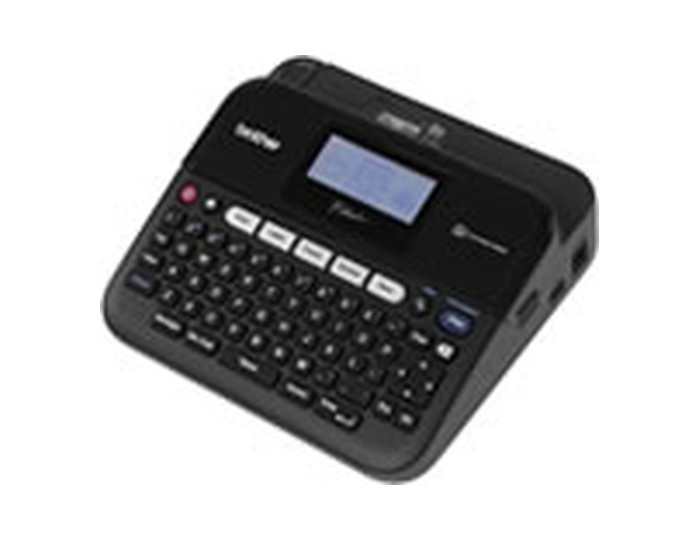
The checks and guides below come from the official manuals for this model.
No matches for this wording. Try a light name, error code or a shorter phrase.
Errors and messages
Messages and indicator states from the manual Check # of digits enteredbarcode has the wrong number of digits
Match the barcode data length to the number of digits required by the chosen barcode parameters.
Cutter Malfunction!cutter closed during printing or feeding
Switch the label maker off and back on. Remove tape tangled in the cutter before printing or feeding again.
Label Too Long!label exceeds the one-metre limit
Shorten the text so the finished label is less than one metre long.
Text Too Long!text exceeds the set label length
Shorten the text to fit the selected length, or increase the label-length setting.
Unable to use XX!label maker cannot use the requested function
Contact Brother customer service and report the displayed message.
Too Many Lines!label has too many lines
Clear the message with a key, then remove excess lines. Use at most five lines on 18 mm tape, three on 12 mm, two on 9 or 6 mm, and one on 3.5 mm.
Too Many Blocks!label has too many text blocks
Clear the message with a key, then remove a block before adding another. A label can contain at most five blocks.
Troubleshooting
Find the problem you are experiencingLabel maker stops responding2 steps
- Use Home, Settings, Reset to reset the internal memory, choosing the reset type carefully.
- If it still does not respond, disconnect the adapter and remove the batteries for more than ten minutes.
Display stays blankView
Check battery orientation and charge, and confirm that the specified adapter is securely connected.
Display uses the wrong languageView
Open Home, Settings, Language, choose the required language and confirm with OK or Enter.
Label does not print3 steps
- Enter text and check that the cassette is seated and has tape remaining.
- Cut off creased tape and thread its end through the exit.
- For a jam, remove the cassette, pull out and cut away the jammed tape, then route the end through its guide before refitting.
Printed labels are poor qualityView
Press the cassette into place until it clicks. Clean the print head with a cotton swab or the optional TZe-CL4 cleaning cassette.
Ink ribbon comes off its spoolView
Replace the cassette if the ribbon is broken. Otherwise leave the tape uncut, remove the cassette and wind the loose ribbon onto its spool as illustrated in the manual.
Printing stops partway through a labelView
Replace the cassette if striped tape shows it is empty. Replace all batteries together, or connect the adapter directly to the label maker.
Saved label files are missingView
Weak batteries or an adapter disconnected for more than two minutes erase saved files. Maintain suitable power when preserving stored labels.
Tape jams keep returningView
Contact Brother customer service if a persistent tape jam cannot be cleared.
Find the firmware versionView
Open Home, Settings, Version information and confirm with OK or Enter to display the version.
Reduce margins and print label chains4 steps
- Choose Cut Option before printing.
- Small Margin reduces repeated margins; Chain prints several labels with small margins.
- After the last label, confirm OK to Feed? to feed before cutting.
- Use No Cut or Special tape for materials the built-in cutter cannot cut, then remove the cassette and use scissors.
Create and check barcode labels3 steps
- Set barcode parameters using Shift and Barcode, enter data, add supported special characters if needed and confirm.
- Prefer black print on white tape and Large width, and test the result with the intended reader.
- Pause during repeated barcode printing if the head overheats.
Template tape width does not matchView
Clear the message and fit a cassette with the width required by the chosen template or block layout. Shorten text if the selected layout exceeds its character limit.
Guides
Getting started
Instructions from the manualInstall batteries, adapter and tape4 steps
- Fit six AA alkaline LR6 or charged Ni-MH HR6 batteries with the shown polarity.
- Use the AD-E001 adapter for mains power; charge Ni-MH cells in their own charger.
- Insert a Brother TZe cassette with the tape end under the guide and press it firmly into place.
- Close the compartment and feed tape before cutting.
Resetting & maintaining your p-touch
Instructions from the manualReset settings or erase saved labels4 steps
- Open Home, Settings, Reset.
- Reset All Settings keeps downloaded labels and file memory; Erase All Content deletes both while preserving settings; Factory Default clears labels and customised settings.
- Confirm only after choosing the intended option.
- A full keyboard reset uses Shift and Backspace while switching on; release Power before releasing the other keys.
Clean the case, print head and cutter5 steps
- Remove the batteries and unplug the adapter before cleaning.
- Wipe the case with a soft dry cloth, using a slightly damp cloth for stubborn marks.
- Clean the print head with a cotton swab or TZe-CL4 cassette without touching it directly.
- About once a year, clean the cutter with a swab lightly moistened with isopropyl alcohol; keep fingers off its blade.
- Do not use alcohol or solvents on the case.
Label printing
Instructions from the manualAdjust printed label lengthView
If a nearly empty cassette makes label length inaccurate, open Home, Settings, Adjustment, Label Length, choose a value from -5 to +5 and confirm.
Model details
Model and compatibility
- Tape
- Use Brother TZe tapes in 3.5, 6, 9, 12 or 18 mm widths. The widest tape supports up to five lines. [1]
- Power
- Use six AA LR6 alkaline or charged HR6 Ni-MH batteries, or the AD-E001 adapter. Charge Ni-MH cells in their separate charger. [1]
- Cleaning cassette
- The guide lists TZe-CL4 as the optional print-head cleaning cassette. [1]