MODEL REFERENCE
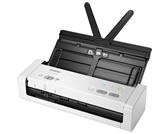
Brother ADS-1250W
17 errors · 48 troubleshooting topics
The checks and guides below come from the official manuals for this model.
No matches for this wording. Try a light name, error code or a shorter phrase.
Error codes
Messages and indicator states from the manual Document Jama document is jammed
Clear the jam and select Long Paper for an unusually long original.
Pick Up Document Errorthe document did not feed
Open the front cover, remove the document, close the cover, and reload it.
Front Cover Openthe front cover is open
Close the front cover before scanning.
Access Errorthe scanner cannot access the chosen destination
Connect the USB cable for a wired Scan to PC, or set up Scan to PC in Remote Setup for wireless use. Insert the USB drive for Scan to USB.
Unusable USB DeviceuSB storage cannot be used on bus power
Connect the scanner to an AC outlet before scanning to a USB drive.
Unusable Devicethe inserted USB device is unsupported
Remove the unsupported USB device; use AC power for USB storage.
Too Many Files on USBthe USB drive has too many files
Delete unused files or use a USB drive with available space.
Feed Selector Errorthe feed selector or loaded media is incorrect
Set the selector for the ADF or card slot and load only the one being scanned.
Plastic Card Jama plastic card is jammed
Remove the card and adjust the card slot guide before reinserting it.
Updating the Firmwarea firmware update is running
Wait until the firmware update finishes.
Scheduled Maintenancethe maintenance counter passed 5,000
Clean the scanner, then reset the maintenance counter with Remote Setup.
Pickup Roller or Separation Pad Limita feed component reached its use limit
Check its remaining life, replace the worn component, and reset the roller counter.
Replace Separation Padthe separation pad needs replacement
Replace the separation pad using the procedure in the manual.
Clean the Sensorsthe sensors need cleaning
Clean the sensors using the manual's procedure.
Network Connection Errorthe network connection failed
Hold the USB and computer buttons for five seconds to restart the wireless network.
Wireless Direct Connection Errorwireless Direct did not connect
Hold the X button for five seconds to restart Wireless Direct.
Wireless Network Connection Errorthe wireless network connection failed
Hold the computer button for five seconds to restart the wireless network.
Troubleshooting
Find the problem you are experiencingTWAIN or WIA errors appear when starting to scan. (Windows)View
Make sure the Brother TWAIN or WIA driver is selected as the primary source in your scanning application.
TWAIN errors appear when starting to scan. (Mac)View
Make sure the Brother TWAIN driver is selected as the primary source in your application.
Vertical lines are seen in the scanned imageView
Clean the glass strips inside the machine.
The scanned image is missingView
Gently adjust the Paper Guides to fit the width of your document.
The scanned image is skewedView
Gently adjust the Paper Guides to fit the width of your document.
Scanning is too slowView
Decrease the scanner resolution.
The document was not fedView
Clean the Separation Pad and Pick Up Roller.
The document is jammedView
Clean the Separation Pad and Pick Up Roller.
The scan quality is poorView
Clean the Separation Pad and Pick Up Roller.
Bleedthrough is seen in the scanned dataView
Select the Remove Bleed-through / Pattern / Remove Background Color check box.
Colors in the scanned data are darkView
Do one of the following: • Select the Remove Bleed-through / Pattern / Remove Background Color check box, and then scan from your computer.
A page that is not a blank page is skippedView
Set Skip Blank Page to Off.
Cannot scan a long documentView
Select Long Paper for the document size.
A multifeed occursView
Load your document correctly, and then try again.
Cannot scan to a computer from the machineView
Install a scanning application (for example, Brother iPrint&Scan).
The plastic card is jammedView
Remove the plastic card.
The plastic card was not fedView
Remove the document from the ADF.
Cannot scan to a USB flash drive in Bus Power ModeView
Connect your scanner to an AC power outlet, and then try to scan.
Cannot Scan to Workflow from the machineView
Configure the settings using Brother iPrint&Scan (for Windows and Mac).
Cannot save the settings in Remote Setup or Web Based ManagementView
Wait until the machine finishes processing, and then try again.
The computer has detected a USB flash driveView
The computer detects the USB flash drive that is inserted into the machine.
The machine is in Sleep Mode (power save mode)View
Do one of the following: • Press .
The machine is not turned onView
Turn off the machine, wait 60 seconds, and then turn it on again.
Your computer cannot find the machine via USB interfaceView
Install the scanner driver.
Your security settings (SSID/ Network Key (Password)) are not correctView
Confirm your security settings.
Your Brother machine's MAC address is not allowedView
Confirm that the Brother machine's MAC Address is allowed in the filter.
Your wireless access point/ router is in stealth mode (not broadcasting the SSID)View
Enter the correct Network Name (SSID) and Network Key (Password) manually.
Your security settings (SSID/ Password) are not correctView
Confirm the Network Name (SSID) and Network Key (Password).
Your Brother machine is placed too far from your mobile deviceView
Move your Brother machine within about 3.3 feet (1 meter) of the mobile device when you configure the Wi-Fi Direct network settings.
There are some obstructions (walls or furniture, for example) between your machine and the mobile deviceView
Move your Brother machine to an obstruction-free area.
There is a wireless computer, Bluetooth- supported device, microwave oven, or digital cordless phone near the Brother machine or the mobile deviceView
Move other devices away from the Brother machine or the mobile device.
If you have checked and tried all of the actions, but still cannot complete the Wi- Fi Direct configurationView
Turn your Brother machine off and back on.
Your computer is not connected to the networkView
Connect the computer to the network, then restart Brother device discovery.
Your machine is not connected to the networkView
Check the Wi-Fi light and the error LEDs on the ADS-1250W, then correct the indicated connection error.
You use security softwareView
Search for the scanner again and allow the Brother installer through any security prompt.
You use a Wi-Fi routerView
Turn off the router's privacy separator if it prevents devices on the network from seeing each other.
Your Brother machine is placed too far from the Wireless access point/routerView
Move the scanner within about one meter of the access point while setting up wireless networking.
There are some obstructions (walls or furniture, for example) between your machine and the Wireless access point/routerView
Move the scanner closer to the access point and clear the obstruction between them.
There is a wireless computer, Bluetooth-supported device, microwave oven, or digital cordless phone near the Brother machine or the Wireless access point/routerView
Move nearby wireless devices or appliances away from the scanner and access point.
You did not select Accept in the security alert dialog box during the Brother Device installation, applications’ start-up process, or when using the scanning featuresView
Allow the Brother scanning software through the security alert or firewall settings.
Your security software blocks your machine's access to the network. (The Network scanning feature does not work. )View
Allow network scanning in the firewall; Brother lists UDP port 54925 for Windows network scanning.
Your security software blocks your machine's access to the networkView
Allow the ports required by the Brother network feature in your security software.
Your Brother machine was not assigned an available IP addressView
Check that the scanner and computer have valid IP addresses on the same subnet.
You cannot connect the Brother machine to the network using wireless capabilitiesView
Check the ADS-1250W Wi-Fi light and error LEDs, then correct the displayed connection problem.
Because the machine does not support Kerberos authentication, Network scanning cannot be usedView
Change the server settings or choose a different destination folder for Scan to Network.
Check that your Brother machine, access point/router, or network hub is turned onView
Confirm power and network equipment are on, remove protective packaging, and close the scanner covers.
Check your Brother machine’s network settings, such as IP address, or the link statusView
Check the ADS-1250W Wi-Fi light and error LEDs to identify a connection fault.
Check that you can "ping" the Brother machine from your computerView
Ping the scanner by IP address or node name, then check IP and subnet settings if it does not respond.
Controls and parts
See the manual diagrams 1 diagram
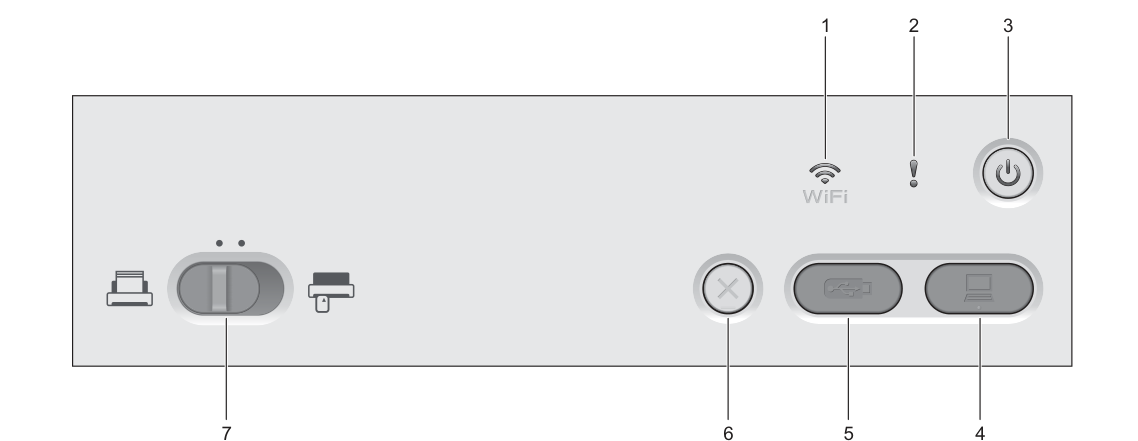
Diagram key
- 1: Wi-Fi indicator
- 2: Error indicator
- 3: Power on/off
- 4: Scan to PC
- 5: Scan to USB
- 6: Stop
- 7: Feed selector