MODEL REFERENCE
Brother ADS-1700W
35 errors · 38 troubleshooting topics
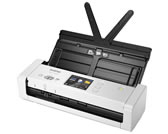
The checks and guides below come from the official manuals for this model.
No matches for this wording. Try a light name, error code or a shorter phrase.
Error codes
Messages and indicator states from the manual Access Deniedsecure Function Lock is On.
Contact your administrator to check your Secure Function Lock settings.
Authenticate Errthe password entered in Scan to Network was incorrect.
Enter the correct password.
Both Document and Card setthe ADF and the Card Slot are both loaded with a document and a card.
Load either the ADF or the Card Slot, whichever one you want to scan from.
Cannot Start Workflowthe Cloud Service access right has expired.
In Brother iPrint&Scan, authenticate the Cloud Service access again.
Card JAMthe power came on when the plastic card was inserted in the machine.
Remove the plastic card.
Check Connectionthe machine is not connected to the network.
Check the network connection.
Clean Document Position Sensor /Clean Card Sensorthe sensor is dirty with paper dust.
Clean the sensor.
Confirm the following and try again. - Check the network connection. - Set the correct Date&Time.there is a problem with the settings in the machine and/or server.
Make sure your machine is connected to a network with Internet access.
Connection Failedthe machine could not connect to the network.
Check the following: • The PIN is correct.
Document Jamthe Paper Guides are not set to the correct document size.
Clear the document jam, and then do the following: • Gently adjust the Paper Guides to fit the width of your document.
Erroran error occurred when you used the to Workflow feature.
Restart Brother iPrint&Scan.
Feed Selector Errorfeed Selector is set incorrectly.
Set the Feed Selector to the left side when scanning from the ADF, and to the right side when scanning from the Card Slot.
Incorrect PINthe PIN Number entered in Secure Function Lock was incorrect.
Enter the correct PIN Number.
Insufficient USB Storagethe inserted USB flash drive is full.
Press Close, and then do one of the following: • Delete unused files or folders from the USB flash drive, and then try again.
No Access Point:the machine cannot detect a wireless access point/router that has an active WPS function.
Check the following: • You did not press the WPS button on two or more wireless access point/ routers.
No Certificatethe certificate does not exist, or is corrupted.
Configure the settings under Signed PDF in the Administrator tab in Web Based Management.
No Document / Cardno document or card is loaded.
Load a document or card.
No PC foundthe machine is not connected to your computer.
Connect the machine to your computer, and then try again.
No Profile foundno Scan to FTP/SFTP profile or Scan to Network profile is registered.
Configure the Scan to FTP/SFTP profile or the Scan to Network profile before using Scan to FTP or Scan to Network.
Not Registered(Scan) The email address or SMTP server address of the scan destination is not registered.
Make sure the email address or SMTP server address is correctly configured.
Remove documents.auto Start Scan Mode was enabled while a document was loaded.
Remove the document, and then reload it.
Replace Pickup Rollerpick Up Roller has been used over 100,000 times.
Replace the Pick Up Roller with a new one.
Replace Separation Padthe Separation Pad has been used more than 10,000 times.
Replace the Separation Pad with a new one.
Scheduled Maintenance Alertthe Pick Up Roller and Separation Pad have been used over 5,000 times.
Clean the Separation Pad and Pick Up Roller.
Sending Errorthe Scan to FTP/SFTP profile, Scan to Network profile or Scan to Email Server is not configured correctly.
Make sure the Scan to FTP/SFTP profile, Scan to Network profile or Scan to Email Server is configured correctly.
Server Time outthe machine was disconnected from the Scan to FTP/SFTP profile, Scan to Network profile or Scan to Email Server.
Make sure the Scan to FTP/SFTP profile, Scan to Network profile or Scan to Email Server is configured correctly.
Setting Lockadding a new shortcut was attempted while the Setting Lock was turned on.
Disable the Setting Lock.
Unsupported security information (Authentication method/Encryption method). Confirm supported security mode and try again.the security settings are incorrect.
Confirm the security settings and try again.
Unusable Devicean unusable device is inserted in the USB port.
Remove the device.
USB Access Errorthe USB flash drive was removed while it was being accessed.
Insert the USB flash drive.
USB Hub Not Supporteda USB flash drive with a hub is inserted in the USB port.
Remove the unsupported device from the USB port.
USB Write-protectedthe inserted USB flash drive is write- protected.
Remove the write-protected USB flash drive, press Close, and then do one of the following: • Turn off the USB flash drive’s write- protection, and then try again.
Workflow not foundworkflow was not created.
Make sure that Workflow is created and configured correctly in Brother iPrint&Scan (for Windows and Mac).
Wrong Network Keythe Network Key is incorrect.
Confirm the Network Key and try again.
Wrong Passwordthe password entered in Setting Lock was incorrect.
Enter the correct password.
Troubleshooting
Find the problem you are experiencingTWAIN or WIA errors appear when starting to scan. (Windows)View
Make sure the Brother TWAIN or WIA driver is selected as the primary source in your scanning application.
TWAIN errors appear when starting to scan. (Mac)View
Make sure the Brother TWAIN driver is selected as the primary source in your application.
Vertical lines are seen in the scanned imageView
Clean the glass strips inside the machine.
The scanned image is missingView
Gently adjust the Paper Guides to fit the width of your document.
The scanned image is skewed. (ADS-1700W)View
Select Auto for Document Size.
Scanning is too slowView
Decrease the scanner resolution.
The document was not fedView
Clean the Separation Pad and Pick Up Roller.
The document is jammedView
Clean the Separation Pad and Pick Up Roller.
The scan quality is poorView
Clean the Separation Pad and Pick Up Roller.
Bleedthrough is seen in the scanned dataView
Select the Remove Bleed-through / Pattern / Remove Background Color check box.
Colors in the scanned data are darkView
Do one of the following: • Select the Remove Bleed-through / Pattern / Remove Background Color check box, and then scan from your computer.
A page that is not a blank page is skippedView
Set Skip Blank Page to Off.
Cannot scan a long documentView
Select Long Paper for the document size.
A multifeed occursView
Load your document correctly, and then try again.
Cannot scan. (ADS-1700W)View
Contact your administrator to check your Secure Function Lock settings.
Cannot scan to a computer from the machineView
Install a scanning application (for example, Brother iPrint&Scan).
Auto Start Scan does not start. (ADS-1700W)View
Confirm the settings for Auto Start Scan (Shortcut 21).
The plastic card is jammedView
Remove the plastic card.
The plastic card was not fedView
Remove the document from the ADF.
Cannot scan to a USB flash drive in Bus Power ModeView
Connect your scanner to an AC power outlet, and then try to scan.
Cannot Scan to Workflow from the machineView
Configure the settings using Brother iPrint&Scan (for Windows and Mac).
Cannot save the settings in Remote Setup or Web Based ManagementView
Wait until the machine finishes processing, and then try again.
Cannot enter the IP address and Subnet Mask. (ADS-1700W)View
Press the button to delete the entered information, and then enter the correct information.
The computer has detected a USB flash driveView
The computer detects the USB flash drive that is inserted into the machine.
I want to restrict to change setting from Remote Setup. (ADS-1700W)View
When you set Security Function Lock or Setting Lock on, Remote Setup cannot start by any user.
I want to prevent users from changing settings using Remote Setup. (ADS-1700W)View
When you turn on the Secure Function Lock or Setting Lock, the users cannot use Remote Setup.
The machine is in Sleep Mode (power save mode)View
Do one of the following: • Press .
The machine is not turned onView
Turn off the machine, wait 60 seconds, and then turn it on again.
Your computer cannot find the machine via USB interfaceView
Install the scanner driver.
Your security settings (SSID/ Network Key (Password)) are not correctView
Confirm your security settings.
Your Brother machine's MAC address is not allowedView
Confirm that the Brother machine's MAC Address is allowed in the filter.
Your wireless access point/ router is in stealth mode (not broadcasting the SSID)View
Enter the correct Network Name (SSID) and Network Key (Password) manually.
Your security settings (SSID/ Password) are not correctView
Confirm the Network Name (SSID) and Network Key (Password).
Your Brother machine is placed too far from your mobile deviceView
Move your Brother machine within about 3.3 feet (1 meter) of the mobile device when you configure the Wi-Fi Direct network settings.
There are some obstructions (walls or furniture, for example) between your machine and the mobile deviceView
Move your Brother machine to an obstruction-free area.
There is a wireless computer, Bluetooth- supported device, microwave oven, or digital cordless phone near the Brother machine or the mobile deviceView
Move other devices away from the Brother machine or the mobile device.
If you have checked and tried all of the actions, but still cannot complete the Wi- Fi Direct configurationView
Turn your Brother machine off and back on.
Your machine is in Sleep Mode and cannot configure the network settings on Web Based Management. (ADS-1700W)View
Turn off the Sleep Mode.
Controls and parts
See the manual diagrams 1 diagram
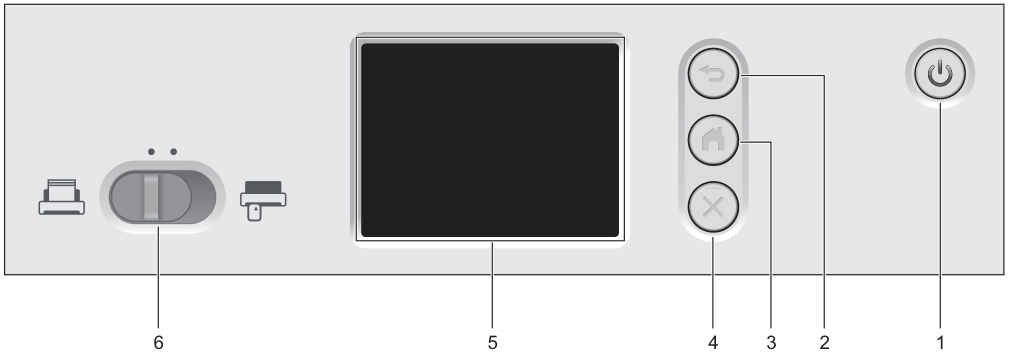
Diagram key
- 1: Power on/off with LED
- 2: Back
- 3: Home
- 4: Stop
- 5: Touchscreen LCD
- 6: Feed selector