MODEL REFERENCE
Brother ADS-2200
11 errors · 20 troubleshooting topics
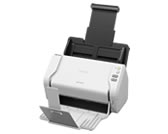
The checks and guides below come from the official manuals for this model.
No matches for this wording. Try a light name, error code or a shorter phrase.
Error codes
Messages and indicator states from the manual Document Jama document is jammed
Remove loose sheets, open the front cover, pull out the jammed original and scraps, close the cover, then press any button. For long originals, set Document Size to Long Paper.
Pick Up Document Errorthe original did not feed
Open the front cover, remove the original, close the cover, and reload it.
Multifeed Detection Errormore than one sheet fed
Open the front cover and remove the jammed sheets, then check which pages were saved before scanning again.
Front Cover Openthe front cover is open
Close the front cover firmly before scanning.
Access Errorthe scan destination cannot be accessed
For Scan to PC, connect the USB cable; for Scan to USB, insert or reinsert the flash drive.
Unusable DeviceuSB device is unsupported
Remove the unsupported device from the USB port.
Too Many Files on USB (Scan to USB)uSB drive has too many files
Delete unused files or use another flash drive with free capacity.
Updating the Firmwarefirmware update is running
Wait for the update to finish before using the scanner.
Pick Up Roller life exceededpickup roller passed 100,000 uses
Check the roller life in Remote Setup, replace worn pickup or brake rollers, and reset the counter.
Scheduled Maintenance counter exceededmaintenance counter passed 5,000
Clean the scanner, then reset its scheduled-maintenance counter in Remote Setup.
Service call indicationscanner needs service
Contact a Brother dealer or Brother Customer Service for the service-call LED indication.
Troubleshooting
Find the problem you are experiencingTWAIN or WIA errors appear when starting to scan. (Windows)1 check
- The TWAIN or WIA driver has not been selected as the primary source in your scanning application
- Select the Brother TWAIN or WIA driver as the primary scanner in the application.
TWAIN errors appear when starting to scan. (Mac)1 check
- The TWAIN driver has not been selected as the primary source in your scanning application
- Set the Brother TWAIN driver as the primary source, or scan with the ICA driver.
Vertical lines are seen in the scanned image1 check
- Paper dust has accumulated on the surface of the glass strips
- Clean the scanner glass strips.
The scanned image is missing4 checks
- The Paper Guides are not adjusted to fit the width of the document
- Fit the paper guides to the document width and center narrow pages.
- The settings are not appropriate for your document. For example, a Letter/A4-sized document was fed when Executive/A5 Letter was selected as the document size
- Match the document size setting to the original, then adjust the scan margin and position.
- If you use a preset document size, the document skewing cannot be corrected automatically
- Set Document Size to Auto so skew can be corrected.
- The scanned image is missing
- Adjust the scan margin and position.
The scanned image is skewed2 checks
- The Paper Guides are not adjusted to fit the width of the document
- Fit the paper guides to the document width and center narrow pages.
- The Long Paper setting is selected
- Choose a document-size setting other than Long Paper.
Scanning is too slow1 check
- The resolution is not appropriate for your document
- Lower the scan resolution.
The document was not fed6 checks
- Paper dust has accumulated on the surface of the Pick Up Roller or Brake Roller
- Clean both the brake roller and pickup roller.
- Too many documents are loaded in the ADF at a time
- Reduce the ADF stack to the permitted number of pages.
- There are foreign objects in the ADF
- Remove scraps or foreign material from the automatic feeder.
- Your media is too thin or too thick
- Use media within the scanner’s supported thickness and size.
- Remote Setup is in process
- Close Remote Setup before trying to feed the document.
- Paper ejection has paused
- Take the remaining paper out of the feeder, then reload it.
The document is jammed3 checks
- Paper dust has accumulated on the surface of the Pick Up Roller or Brake Roller
- Clean both the brake roller and pickup roller.
- There are foreign objects in the ADF
- Remove scraps or foreign material from the automatic feeder.
- Your document is not acceptable for the machine
- Use a document that meets the scanner’s supported media limits.
The scan quality is poor3 checks
- Paper dust has accumulated on the surface of the Pick Up Roller or Brake Roller
- Clean both the brake roller and pickup roller.
- Paper dust has accumulated on the surface of the glass strips inside the machine
- Clean the scanner glass strips.
- The scanner resolution is too low
- Raise the scan resolution.
Bleedthrough is seen in the scanned data1 check
- The settings are not appropriate for the type of document being scanned
- Enable background or bleed-through removal before rescanning.
Colors in the scanned data are dark1 check
- The settings are not appropriate for the type of document being scanned
- Enable background or bleed-through removal before rescanning.
A page that is not a blank page is skipped1 check
- • The document is too light. • Skip Blank Page is set to On
- Turn off Skip Blank Page or lower its sensitivity.
Cannot scan a long document1 check
- Long Paper is not selected for the document size
- Set Document Size to Long Paper; if the option is unavailable, disable Skip Blank Page and two-sided scanning first.
A multifeed occurs1 check
- The document is not loaded correctly
- Reload the pages squarely in the feeder and try again.
Cannot scan to a computer from the machine1 check
- The WIA service is not started. (Windows) Brother PushScan is not set
- Start the Windows WIA service and enable Brother PushScan.
Cannot start Remote Setup7 checks
- The machine is turned off
- Switch on the scanner, then reconnect with Remote Setup.
- The machine is not connected to your computer
- Reconnect the scanner to the computer, then retry Remote Setup.
- An error is occurring
- Clear scanner errors, confirm Remote Setup shows Ready, and retry.
- The machine is scanning
- Let the scan finish, then retry Remote Setup.
- The machine is being configured from the machine’s Control Panel
- Finish the panel setup before using Remote Setup.
- Because you pressed the button on the machine before saving the Remote Setup settings, the machine went into Sleep Mode
- Open Remote Setup again and save the changes.
- A USB flash drive is inserted into the machine
- Eject the USB flash drive before retrying.
The machine is in Sleep Mode (power save mode)1 check
- The machine is idle and the amount of time specified by the Sleep Mode setting has elapsed
- Wake the scanner with its power control, by loading a document, or by starting a scan from the computer.
The machine is not turned on1 check
- The machine was plugged in within 60 seconds after pulling out the plug
- Switch the scanner off, wait one minute, and turn it on again.
Your computer cannot find the machine via USB interface2 checks
- A USB flash drive is inserted
- Eject the USB flash drive before retrying.
- The scanner driver is not installed
- Install the Brother scanner driver on the computer.
The computer has detected a USB flash drive1 check
- A USB flash drive is inserted into the machine and the computer is connected to the machine using a USB cable
- Eject the USB flash drive before retrying.