MODEL REFERENCE
Brother ADS-2700W
30 errors · 31 troubleshooting topics
The checks and guides below come from the official manuals for this model.
No matches for this wording. Try a light name, error code or a shorter phrase.
Error codes
Messages and indicator states from the manual Access Deniedscanning is restricted by Secure Function Lock
Secure Function Lock is On: Ask the administrator to check whether Secure Function Lock permits your scan.
Authentication Errorscan to Network password is incorrect
The password entered in Scan to Network was incorrect: Enter the correct network-profile password, or reset it if forgotten.
Check Connectionnetwork or USB connection is missing2 checks
Confirm the following and try again. - Check the network connection. - Set the correct Date&Time.connection or clock settings need attention2 checks
Connection Failedwireless connection failed
The machine could not connect to the network: Check the PIN and router power, ensure WPS is active on only one router, then restart the scanner and router.
Document Jamoriginal is jammed in the feeder2 checks
Incorrect PINsecure Function Lock PIN is incorrect
The PIN Number entered in Secure Function Lock was incorrect: Enter the correct PIN and ask the administrator to check the Secure Function Lock settings.
Insufficient USB StorageuSB flash drive is full
The inserted USB flash drive is full: Press Close, delete unused files from the flash drive, or use a drive with more free space.
No Access Point:wPS access point was not detected
The machine cannot detect a wireless access point/router that has an active WPS function: Activate WPS on only one router, then restart the scanner and router and retry.
No Certificatesigned PDF certificate is missing or damaged
The certificate does not exist, or is corrupted: Open Web Based Management, select Administrator, and configure Signed PDF settings.
No PC founddestination computer is unavailable
The machine is not connected to your computer: Connect the scanner to the computer, then repeat the scan.
No Profile foundscan destination profile is missing
No Scan to FTP/SFTP profile or Scan to Network profile is registered: Create the FTP, SFTP, or network profile before scanning to that destination.
Not Registeredscan destination or user is not registered2 checks
Remove documents.original was loaded when Auto Start Scan was enabled
Auto Start Scan Mode was enabled while a document was loaded: Take out the original, then load it again.
Replace Pickup Rollerrollers have exceeded their usage limit
All Rollers have been used over 100,000 times: Replace the pickup and brake rollers; continued use after 100,000 feeds can cause scanning errors.
Scheduled Maintenance Alertrollers are due for cleaning
The Pick Up Roller has been used over 5,000 times: Clean the pickup and brake rollers after 5,000 feeds to reduce jams and poor scan quality.
Sending Errorscan destination profile is configured incorrectly
The Scan to FTP/SFTP profile, Scan to Network profile or Scan to E-mail Server is not configured correctly: Check the FTP, SFTP, network, or email-server profile and configure its network settings.
Server Time outconnection to the scan destination was lost
The machine was disconnected from the Scan to FTP/SFTP profile, Scan to Network profile or Scan to E-mail Server: Check the destination profile and network settings for FTP, SFTP, network-folder, or email-server scanning.
Setting Locksetting Lock blocks a new shortcut
Adding a new shortcut was attempted while the Setting Lock was turned on: Disable Setting Lock before adding the shortcut.
Unsupported security information (Authentication method/Encryption method). Confirm supported security mode and try again.wireless security settings are unsupported
The security settings is incorrect: Check the network authentication and encryption settings, then retry with a supported configuration.
Unusable DeviceuSB device is unsupported
An unusable device is inserted in the USB port: Remove the USB device, unplug the scanner, and reconnect its power supply.
USB Access ErroruSB flash drive was removed during access
The USB flash drive was removed while it was being accessed: Insert the flash drive again before repeating the scan.
USB Hub Not SupporteduSB device contains an unsupported hub
A USB flash drive with a hub is inserted in the USB port: Remove the USB device with the hub.
USB Write-protecteduSB flash drive blocks writing
The inserted USB flash drive is write- protected: Remove the drive and press Close. Disable its write protection or use a writable drive.
Wrong Network Keywireless network password is incorrect
The Network Key is incorrect: Check the network password and enter it again.
Wrong Passwordsetting Lock password is incorrect
The password entered in Setting Lock was incorrect: Enter the correct Setting Lock password, or reset it if forgotten.
TS-02wireless router was not detected
Check router power, move the scanner closer, permit its MAC address, and recheck the SSID and password. Choose a 2.4 GHz network; this scanner does not support 5 GHz.
TS-04wireless authentication or encryption is unsupported
Use a supported authentication/encryption pair: WPA-Personal with TKIP/AES or WPA2-Personal with AES. Recheck the SSID and security settings if connection still fails.
TS-05wireless security information is incorrect
Confirm the SSID and network password. For WEP, the scanner accepts only the first key.
TS-08multiple WPS access points were detected
Activate WPS on only one nearby router, then try again after a few minutes.
Troubleshooting
Find the problem you are experiencingTWAIN or WIA errors appear when starting to scan. (Windows)1 check
- The TWAIN or WIA driver has not been selected as the primary source in your scanning application
- Select the Brother TWAIN or WIA driver as the scan source; in PaperPort, use Scan Settings > Select.
TWAIN errors appear when starting to scan. (Mac)1 check
- The TWAIN driver has not been selected as the primary source in your scanning application
- Choose the Brother TWAIN driver in the scanning application, or scan with the ICA driver.
Vertical lines are seen in the scanned image1 check
- Paper dust has accumulated on the surface of the glass strips
- Clean the scanner’s internal glass strips.
The scanned image is missing4 checks
- The Paper Guides are not adjusted to fit the width of the document
- Set the guides to the page width. Center narrow sheets in mixed-size batches; use continuous scanning if they feed at an angle.
- The settings are not appropriate for your document. For example, a Letter/A4-sized document was fed when Executive/A5 Letter was selected as the document size
- Choose the actual document size, then adjust scan margins and position.
- If you use a preset document size, the document skewing cannot be corrected automatically
- Choose Auto as Document Size to enable automatic skew correction.
- Changing scan position or access settings
- Adjust the scan margins and image position.
The scanned image is skewed2 checks
- The Paper Guides are not adjusted to fit the width of the document
- Set the guides to the page width. Center narrow sheets in mixed-size batches; use continuous scanning if they feed at an angle.
- The Long Paper setting is selected
- Choose a document-size setting other than Long Paper.
Scanning is too slow1 check
- The resolution is not appropriate for your document
- Lower the scan resolution to shorten the scan time.
The document was not fed6 checks
- Paper dust has accumulated on the surface of the Pick Up Roller or Brake Roller
- Clean the pickup and brake rollers.
- Too many documents are loaded in the ADF at a time
- Reduce the feeder stack to the allowed page count for the original type.
- There are foreign objects in the ADF
- Clear foreign objects and torn paper from the feeder.
- Your media is too thin or too thick
- Use originals within the scanner’s supported thickness range.
- Remote Setup is in process
- Cancel Remote Setup before scanning.
- Paper ejection has paused
- Remove the originals from the feeder.
The document is jammed3 checks
- Paper dust has accumulated on the surface of the Pick Up Roller or Brake Roller
- Clean the pickup and brake rollers.
- There are foreign objects in the ADF
- Clear foreign objects and torn paper from the feeder.
- Your document is not acceptable for the machine
- Use originals that meet the scanner’s document requirements.
The scan quality is poor3 checks
- Paper dust has accumulated on the surface of the Pick Up Roller or Brake Roller
- Clean the pickup and brake rollers.
- Paper dust has accumulated on the surface of the glass strips inside the machine
- Clean the internal glass strips.
- The scanner resolution is too low
- Raise the scan resolution for more detail.
Bleedthrough is seen in the scanned data1 check
- The settings are not appropriate for the type of document being scanned
- Enable Remove Bleed-through / Pattern / Remove Background Color.
Colors in the scanned data are dark1 check
- The settings are not appropriate for the type of document being scanned
- From the computer, enable background removal, raise Brightness or Contrast, or choose Gray or Color as Scan Type.
A page that is not a blank page is skipped1 check
- The document is too light. Skip Blank Page is set to On
- Turn Skip Blank Page off or lower its sensitivity.
Cannot scan a long document1 check
- Long Paper is not selected for the document size
- Choose Long Paper. If it is unavailable on the control panel, turn Skip Blank Page and 2-sided Scan off, and choose a Scan Type other than Auto.
A multifeed occurs1 check
- The document is not loaded correctly
- Reload the originals correctly, then repeat the scan.
Cannot scan2 checks
- Secure Function Lock is on
- Ask the administrator to check your Secure Function Lock scan permission.
- The Pull Scan option in the Scan from PC dialog box in Web Based Management is disabled
- Enable Pull Scan in Web Based Management under Scan from PC.
Cannot scan to a computer from the machine1 check
- The WIA service is not started. (Windows) Brother PushScan is not set
- Start the Windows WIA service and configure Brother PushScan to start.
Auto Start Scan does not start1 check
- The settings for Auto Start Scan (Shortcut 21) are incorrect
- Review Shortcut 21, which controls Auto Start Scan.
Cannot save the settings in Remote Setup or Web Based Management2 checks
- The machine is processing
- Let the scanner finish its current job, then save again.
- The machine is being configured from the machine’s Control Panel
- Finish control-panel configuration, then save through Remote Setup or Web Based Management.
Cannot start Remote Setup7 checks
- The machine is turned off
- Switch the scanner on before opening Remote Setup.
- The machine is not connected to your computer
- Connect the scanner to the computer, then retry.
- An error is occurring
- Clear the errors and confirm Remote Setup shows Ready.
- The machine is scanning
- Wait for the scan to finish before reopening Remote Setup.
- The machine is being configured from the machine’s Control Panel
- Finish control-panel configuration before opening Remote Setup.
- Because you pressed the button on the machine before saving the Remote Setup settings, the machine went into Sleep Mode
- Reopen Remote Setup and save the settings again.
- A USB flash drive is inserted into the machine
- Remove the flash drive from the scanner.
The machine is in Sleep Mode (power save mode)1 check
- The machine is idle and the amount of time specified by the Sleep Mode setting has elapsed
- Wake the scanner using Power, Home, the touchscreen, a computer scan, loading an original, opening the top cover, or reconnecting a USB device or cable.
The machine is not turned on1 check
- The machine was plugged in within 60 seconds after pulling out the plug
- Switch off, wait 60 seconds, then switch the scanner on again.
Your computer cannot find the machine via USB interface2 checks
- A USB flash drive is inserted
- Remove the flash drive from the scanner.
- The scanner driver is not installed
- Install the scanner driver on the computer.
Cannot enter the IP address and Subnet Mask1 check
- "000.000.000.000." has already been entered
- Use the clear button marked with an X to remove the existing zeros, then enter the correct IP address and subnet mask.
The computer has detected a USB flash drive1 check
- A USB flash drive is inserted into the machine and the computer is connected to the machine using a USB cable
- Remove the flash drive from the scanner so the connected computer stops detecting it.
I want to restrict to change setting from Remote Setup2 checks
- Changing scan position or access settings
- Enable Secure Function Lock or Setting Lock to block Remote Setup access.
- Changing scan position or access settings
- Enable Secure Function Lock or Setting Lock to prevent Remote Setup changes.
Wireless or Wi-Fi Direct setup fails10 checks
- Your security settings (SSID/ Network Key (Password)) are not correct
- Confirm the SSID and password against the router documentation or ask the network administrator.
- Your Brother machine's MAC address is not allowed
- Find the scanner’s MAC address on its control panel and allow it in the router’s MAC filter.
- Your wireless access point/ router is in stealth mode (not broadcasting the SSID)
- Enter the hidden network’s SSID and password manually, using the router’s documented values.
- Your security settings (SSID/ Password) are not correct
- Check the Wi-Fi Direct SSID and password shown by the scanner and mobile device.
- Your Brother machine is placed too far from your mobile device
- Place the scanner within about one meter of the mobile device during Wi-Fi Direct setup.
- There are some obstructions (walls or furniture, for example) between your machine and the mobile device
- Move the scanner clear of walls or furniture between it and the mobile device.
- There is a wireless computer, Bluetooth- supported device, microwave oven, or digital cordless phone near the Brother machine or the mobile device
- Move nearby Bluetooth devices, microwaves, wireless computers, and cordless phones away.
- If you have checked and tried all of the actions, but still cannot complete the Wi- Fi Direct configuration
- Restart the scanner and configure Wi-Fi Direct again.
- Your machine is in Sleep Mode and cannot configure the network settings on Web Based Management
- Disable Sleep Mode before changing network settings through Web Based Management.
- The enterprise wireless network is not configured correctly
- Configure the enterprise wireless network in Web Based Management.
Scanner is missing during network installation7 checks
- Your computer is not connected to the network
- Connect the computer to the network; ask the administrator if the connection remains unavailable.
- Your machine is not connected to the network
- Check Settings > Network > Wired LAN > Wired Status > Status, or WLAN > WLAN Status > Status.
- Ask the administrator to check the IP address if wired status is Auto/Off or wireless status is Connection Failed.
- You use security software
- Search again in the installer and allow Brother access in security software. Check TCP 5566 for scanning/Remote Setup, TCP 54921 for iPrint&Scan, and UDP 161 for BRAdmin Light.
- You use a Wi-Fi router
- Disable the router’s privacy separator so network devices can communicate.
- Your Brother machine is placed too far from the Wireless access point/router
- Place the scanner within about one meter of the router during wireless setup.
- There are some obstructions (walls or furniture, for example) between your machine and the Wireless access point/router
- Move the scanner clear of obstacles or closer to the router.
- There is a wireless computer, Bluetooth- supported device, microwave oven, or digital cordless phone near the Brother machine or the Wireless access point/router
- Move devices that can interfere with Wi-Fi away from the scanner and router.
Network scanning fails7 checks
- You did not select Accept in the security alert dialog box during the Brother Device installation, applications’ start-up process, or when using the scanning features
- Allow Brother scanning through the security software using its documented settings or contact its provider.
- Your security software blocks your machine's access to the network. (The Network scanning feature does not work. )
- On Windows, check the firewall’s Brother network-scanning rule; this guide lists both a 52515–52614 range and port 54925 with TCP/UDP, so confirm the required rule with the security-software provider.
- On Mac, reinstall the driver.
- Your security software blocks your machine's access to the network
- Allow the documented services through the firewall: TCP 5566 for scanning/Remote Setup, TCP 54921 for iPrint&Scan, and UDP 161 for BRAdmin Light.
- Your Brother machine was not assigned an available IP address
- Confirm that the scanner and computer have valid IP addresses and subnet masks on the same network.
- You cannot connect the Brother machine to the network using wireless capabilities
- Check Settings > Network > WLAN > WLAN Status > Status; ask the administrator to validate the IP address if Connection Failed appears.
- Because the machine does not support SMB 2.0, Kerberos authentication, or DFS, Network scanning cannot be used
- Use compatible server settings or change the destination in Web Based Management’s Scan to Network Profile; this scanner does not support SMB 2.0, Kerberos, or DFS.
- All listed checks have failed
- Uninstall and reinstall the Brother software and drivers after completing the network checks.
Check the scanner’s network connection3 checks
- Check that your Brother machine, access point/ router, or network hub is turned on
- Check scanner and router power, the router link light, removed packaging, and fully closed front, separation-pad, and pickup-roller covers.
- Check your Brother machine’s network settings, such as IP address, or the link status
- Review Network > Network Status in Web Based Management, or wired/wireless status on the control panel; ask the administrator about invalid IP settings.
- Check that you can "ping" the Brother machine from your computer
- Run ping with the scanner’s IP address or node name in the computer’s terminal. If it fails, check the shared network, IP address, and subnet mask.
Controls and parts
See the manual diagrams 1 diagram
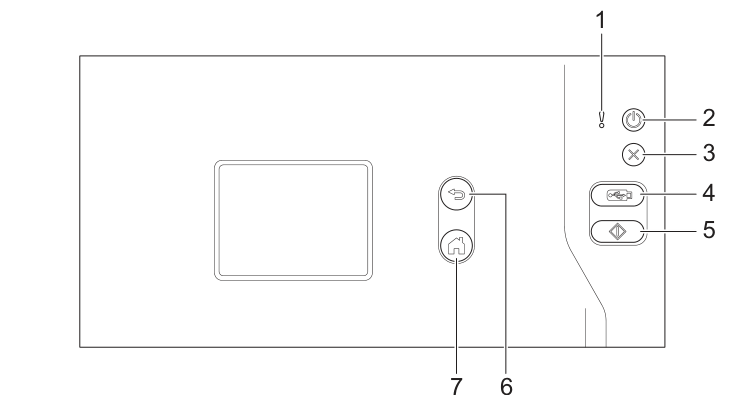
Diagram key
- 1: Error indicator
- 2: Power on/off
- 3: Stop
- 4: Scan to USB
- 5: First shortcut
- 6: Back
- 7: Home
- 8: Touchscreen LCD