MODEL REFERENCE
Brother FAX-2820
28 errors · 46 troubleshooting topics
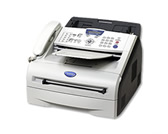
The checks and guides below come from the official manuals for this model.
No matches for this wording. Try a light name, error code or a shorter phrase.
Errors and messages
Shown on the machine display Back Cover Openrear cover is open
Press the rear cover shut until it is fully closed.
Change Drum Soondrum unit is nearing end of life
Continue until print quality declines, then fit a DR-350 drum.
Comm.Errorfax communication failed
Send the fax again or try another telephone line; ask the phone company to check a persistent fault.
Connection Failpolling connection failed
Confirm the other fax is waiting for a polling request, then retry.
Cooling Down Wait for a whiledrum or toner is too hot
Leave the machine idle for 20 minutes so its drum and toner can cool.
Cover is Openfront cover is open
Close the front cover completely.
Data Remainingprint data remains in memory
Restart the print job from the computer.
Disconnectedthe fax call ended
Try sending or receiving the fax again.
Document Jamdocument is jammed in the feeder
Open the control-panel cover, gently pull the original toward the front, close the cover, and press Stop/Exit.
DR Mode in Usedistinctive Ring blocks receive-mode change
Switch Distinctive Ring off before changing receive mode.
Drum Errordrum unit needs cleaning
Clean the drum unit’s corona wire as directed in the manual.
Fail to Warm upfuser unit is too cold
- Before switching off, check stored faxes with Menu/Set, 9, 0, 1 and forward any you need to keep; power-off clears the FAX-2820 memory.
- Then restart and check whether the room is too cold or hot; adjust the room temperature or move the machine.
Unit is too Hotfuser unit is too hot
- Before switching off, check stored faxes with Menu/Set, 9, 0, 1 and forward any you need to keep; power-off clears the FAX-2820 memory.
- Then restart and check whether the room is too cold or hot; adjust the room temperature or move the machine.
Machine too Hotmachine interior is too hot
- Check that the fan runs and clear anything blocking the exhaust.
- Leave the machine on without using it for several minutes if the fan works.
- If the fan does not run, check and forward stored faxes before restarting because power-off clears memory.
No cartridgetoner cartridge is not seated
Remove and reinstall the toner cartridge.
No Paper Fedpaper is empty or loaded incorrectly
Load or reseat paper in the tray, then press Start.
No Response/Busydialed fax number is busy or unanswered
Check the dialed number and call again.
Not Registeredspeed Dial entry is missing
Program the One-Touch or Speed Dial number before using it.
Out of Memoryfax memory is full
Send the pages already scanned, wait for other jobs, or clear stored faxes; for printing, simplify the document or lower its resolution.
Paper jam Insidepaper is jammed inside
- Remove the paper tray and stuck sheet, open the front cover, lift out the toner and drum assembly, clear the paper, then reinstall both assembly and tray.
- Let hot parts cool before touching the interior.
Paper Jam Rearpaper is jammed at the back
Open the front cover and remove the toner and drum assembly, open the rear cover and chute, pull out the paper, then close the covers and reinstall the assembly.
Paper Jam Traypaper is jammed in the tray
Pull the tray completely out, remove the trapped sheet through the tray opening, then reload the tray.
Toner Life Endtoner cartridge is empty or not seated
Reseat the toner and drum assembly, or install a new TN-350 cartridge.
Toner Lowtoner is running low
Get a replacement toner cartridge ready.
Unable to Init.mechanical problem during initialization
- Before switching off, check stored faxes with Menu/Set, 9, 0, 1 and forward any you need to keep; power-off clears the FAX-2820 memory.
- Then switch off and on again.
- If the error remains, leave the machine off for several minutes and retry.
Unable to Printmechanical problem during printing
- Before switching off, check stored faxes with Menu/Set, 9, 0, 1 and forward any you need to keep; power-off clears the FAX-2820 memory.
- Then switch off and on again.
- If the error remains, leave the machine off for several minutes and retry.
Unable to Scanmechanical problem during scanning
- Before switching off, check stored faxes with Menu/Set, 9, 0, 1 and forward any you need to keep; power-off clears the FAX-2820 memory.
- Then switch off and on again.
- If the error remains, leave the machine off for several minutes and retry.
Wrong Paper Sizepaper size does not match the job
Load Letter, Legal, or A4 paper and press Start.
Troubleshooting
Find the problem you are experiencingCondensed print and horizontal streaks or the top and bottom of sentences are cut offView
Ask the sender to retransmit; if the defect persists, contact Brother about the line or reception.
Poor print qualityView
Use the manual’s print-quality checks for paper, toner, drum, and cleaning.
Vertical black lines when receivingView
Clean the corona wire; if the defect remains, ask the sender to check the source fax scanner.
Horizontal streaks; lines are missingView
Ask the sender to retransmit because line interference can remove image lines.
Received faxes appear as split or blank pagesView
Match the Paper Size setting to the loaded paper and turn on automatic reduction.
Dialing does not workView
Check for dial tone, line and power connections, and the Tone/Pulse setting before trying a manual fax.
The machine does not answer when calledView
Choose the correct receive mode, check for dial tone, and confirm the fax line cord is connected.
Poor fax send qualityView
Choose Fine or Super Fine resolution; make a copy and clean the scanner if the copy also looks poor.
Transmission Verification Report says ‘RESULT:NG’ or ‘RESULT:ERROR’1 check
- Transmission Verification Report says ‘RESULT:NG’ or ‘RESULT:ERROR’
- Retry the fax; if line interference keeps causing failures, set Compatibility to Basic and check the phone line.
Vertical black lines when sendingView
Make a copy to confirm the defect, then clean the scanner glass.
The machine ‘Hears’ Voice as CNG ToneView
Stop the unwanted reception with Stop/Exit and turn Easy Receive off if voices keep triggering it.
Sending a Fax Call to the machineView
Press Start when answering on the fax, or use the fax receive code on an extension and hang up when it answers.
Custom features on a single lineView
Check for interference from call waiting, voicemail, alarms, or other line services; use a dedicated line if interruptions continue.
Vertical streaks appear in copiesView
Clean the scanner, laser window, and drum corona wire.
The machine does not printView
Confirm power, toner and drum seating, interface cable, selected driver, LCD errors, and online printer status.
The machine prints unexpectedly or it prints garbage2 steps
- Check and forward stored faxes before restarting, because power-off clears this model’s memory.
- Restart the machine, leave it off briefly if needed, and confirm the application is configured for the FAX-2820.
The machine prints first couple of pages correctly, then some pages have text missingView
Reconnect the computer cable securely so the machine receives flow-control signals.
The machine cannot print full pages of a document. Out of Memory message occursView
Lower print resolution and reduce image or font complexity before retrying.
The machine does not feed paper. The LCD shows No Paper Fed or Paper JamView
Load straight, uncurled sheets, check the tray and driver feed mode, then clear any paper jam.
The machine does not feed paper from the manual feed slotView
Push in one sheet firmly and choose manual feed in the printer driver.
How can I load envelopes?View
Feed envelopes through the manual slot and set the matching envelope size in the application.
What paper can I use?View
Use supported plain, recycled, envelope, transparency, or laser-label media.
How can I clear paper jams?View
Use the paper-jam removal procedure in the manual.
Printed pages are curledView
Match Paper Type to the media and replace unsuitable thin or thick stock.
Printed pages are smearedView
Set Paper Type correctly and avoid overly thick or rough print media.
Printouts are too lightView
Turn Toner Save off on the fax for copies or incoming faxes.
Faint printingView
Check temperature and humidity, turn off Toner Save, clean the scanner window and corona wire, then replace worn toner or drum.
Gray shading behind textView
Use specified paper, reduce heat and humidity, and clean the corona wire; replace worn toner or drum.
Repeated ghost imageView
Use specified paper and the right Paper Type; replace the drum if ghosting continues.
Toner specks on pageView
Use suitable paper, clean the corona wire and drum, and replace the drum if needed.
Hollow or outlined printingView
Use specified paper, select Thick Paper if needed, check humidity, and clean the corona wire.
Entire page prints blackView
Clean the corona wire, then replace the drum if the page remains black.
White spots repeating every 3.1 inchesView
Inspect the drum for material at the repeating spot, clean it gently as directed, then replace the drum if needed.
Black spots repeating every 3.1 inchesView
Inspect the drum for material at the repeating spot, clean it gently as directed, then replace the drum if needed.
Black toner marks across pageView
Replace a damaged drum, use suitable paper, and clean adhesive from the drum if labels caused the marks.
White lines across pageView
Use the proper paper and Paper Type, print several pages, then replace the drum if lines remain.
Horizontal lines across pageView
Clean the machine and drum corona wire; replace a damaged drum.
Black lines or toner stains down pageView
Clean the corona wire and return its blue tab home; replace damaged drum or toner if needed.
White vertical linesView
Wipe the laser scanner window with a soft cloth and replace damaged toner if needed.
Page prints at an angleView
Reload paper straight, set guides to the stack, and avoid overfilling the tray.
Paper curls or wavesView
Check paper quality and storage, then turn, fan, and rotate the stack in the tray.
Paper wrinkles or creasesView
Reload appropriate paper and rotate or turn the stack in the tray.
Paper is trapped inside the toner and drum assemblyView
Open the front cover, remove the drum and toner assembly, release the toner cartridge, clear the paper, then lock the cartridge back into the drum and reinstall the assembly.
Keep stored faxes before switching off4 steps
- Press Menu/Set, 9, 0, 1.
- No Data means no faxes remain; Enter Fax No. means faxes are stored.
- Enter another fax number and press Start to forward them before switching off.
- Forwarding requires a configured Station ID.