MODEL REFERENCE
Brother MFC-L2750DW
34 errors · 10 troubleshooting topics
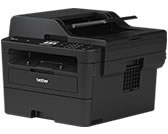
The checks and guides below come from the official manuals for this model.
No matches for this wording. Try a light name, error code or a shorter phrase.
Errors and messages
Shown on the machine display 2-sided Disablerear cover or two-sided tray open2 checks
Access Deniedfunction restricted by Secure Function Lock
Ask the administrator to check the Secure Function Lock settings for this function.
Cartridge Errortoner cartridge not seated
Remove the drum and toner assembly, reseat the toner cartridge in the drum, and reinstall the assembly. Contact Brother if the error remains.
Comm.Errorfax communication failed
Send the fax again or try another phone line. Ask the telephone company to check persistent line trouble.
Cooling Downprinter cooling down
Wait for cooling to finish and keep vents clear. If the fan is not running, disconnect power for several minutes and reconnect it.
Cover is Opena cover is open3 checks
Disconnectedfax call ended
Try sending or receiving again. If calls repeatedly stop on a VoIP line, use the Basic compatibility setting.
Document Jamdocument jammed in the ADF
Remove the jammed document and any scraps from the ADF path, then cancel the operation.
DR Mode in Usedistinctive Ring prevents receive-mode change
Turn Distinctive Ring off before changing the receive mode.
Drum !drum wire or assembly needs attention2 checks
Drum End Soondrum nearing end of life
Arrange a replacement drum so it is ready when Replace Drum appears.
Jam 2-sidedpaper jam in two-sided path
Remove the paper and two-sided trays, clear the jam from the rear path, then reinstall both trays and close the cover.
Jam Insidepaper jam inside printer
Open the front cover, remove the drum and toner assembly, clear the jam, and close the cover.
Jam Rearpaper jam at rear fuser
Open the rear fuser cover, remove the jammed paper, and close it fully. Choose Retry if the message remains.
Jam Traypaper jam in paper tray
Pull out the indicated tray, remove jammed paper, and push the tray back in firmly.
Limit Exceededsecure Function Lock print limit reached
Ask the administrator to check the print limit in Secure Function Lock settings.
Manual Feedmanual feed slot is empty
Put a sheet in the manual feed slot.
No Caller IDcaller ID history unavailable
Check whether Caller ID service is active with the telephone company.
No Paperpaper tray empty or loaded incorrectly
Refill or reload the paper tray, set the guides to the paper size, and keep the stack below the fill limit.
No Response/Busyfax number busy or unanswered
Check the fax number and try the call again.
No Tonertoner cartridge not detected
Reseat the toner cartridge in the drum assembly and reinstall it. Replace the cartridge if the message persists.
Out of Memoryprinter or fax memory full
For fax or copy jobs, wait for other jobs or send scanned pages. For printing, lower the resolution or clear stored faxes.
Print Data Fullsecure print data fills memory
Cancel the operation and delete previously stored secure print data.
Print Unable XXmechanical print fault
Restart the printer after a few minutes. Contact Brother if the fault returns.
Replace Drumdrum replacement or counter reset needed2 checks
Replace Tonertoner cartridge exhausted
Install a new toner cartridge to resume printing.
Scan Unabledocument too long for two-sided scanning
Cancel the scan and use a document size suitable for two-sided scanning.
Scan Unable XXmechanical scan fault
Restart the printer. Contact Brother if the scan fault persists.
Self-Diagnosticfuser temperature fault2 checks
Size Error 2-sidedpaper size unavailable for two-sided printing2 checks
Size mismatchloaded paper size differs from tray setting
Load the configured paper size and set the tray to match.
Toner Endedtoner cartridge exhausted
Install a new toner cartridge to resume printing.
Toner Lowtoner cartridge nearly empty
Order a replacement toner cartridge now; printing can continue until Replace Toner appears.
Touchscreen Initialisation Failedtouchscreen obstructed during startup2 checks
Troubleshooting
Find the problem you are experiencingNo printoutView
Check power, the selected Brother driver, any displayed error, and whether the printer is set offline.
Printer stopped during a print jobView
Cancel the stalled job, clear it from printer memory, and send the document again.
Automatic two-sided printing does not workView
Check the driver paper size and use supported paper for automatic two-sided printing.
Paper jam in the paper trayView
Pull out the paper tray, remove the jammed sheet, straighten the stack, and reinstall the tray.
Paper jam at the back of the printerView
Leave the printer on for 10 minutes to cool. Open the rear and fuser covers, gently remove the jammed paper, then close both covers.
Paper jam inside the printerView
Leave the printer on for 10 minutes to cool. Remove the drum and toner assembly, clear the jam, reinstall it, and close the front cover.
Paper jam in the two-sided trayView
Leave the printer on for 10 minutes to cool. Remove both trays, clear jammed paper from the two-sided tray and rear path, then reinstall them.
Faint printView
Check toner status and Toner Save, then clean the drum and corona wire. Replace worn supplies if the print remains faint.
Document jam in the ADFView
Open the ADF cover, pull the document out to the left, remove scraps, and close the cover.
Cannot receive a faxView
Check the phone-line connection and receive mode, then test for a dial tone and ask someone to send a test fax.
Controls and parts
See the manual diagrams 1 diagram
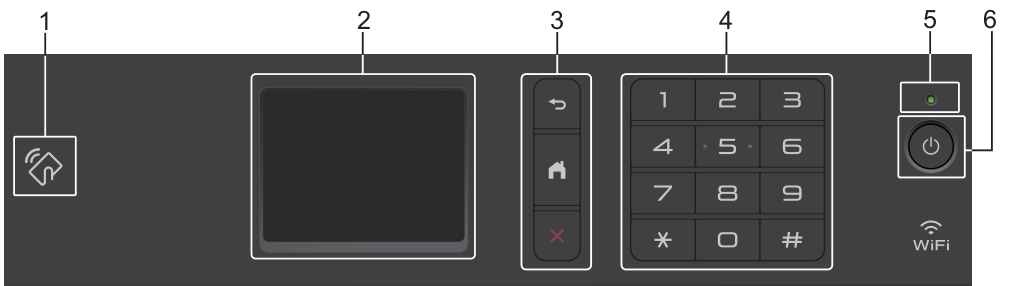
Diagram key
- 1: NFC (MFC-L2750DW only)
- 2: Touchscreen LCD
- 3: Back, Home and Cancel buttons
- 4: Dial pad
- 5: Power indicator
- 6: Power on/off