MODEL REFERENCE
Brother PT-H107
13 errors · 11 troubleshooting topics · 2 guides
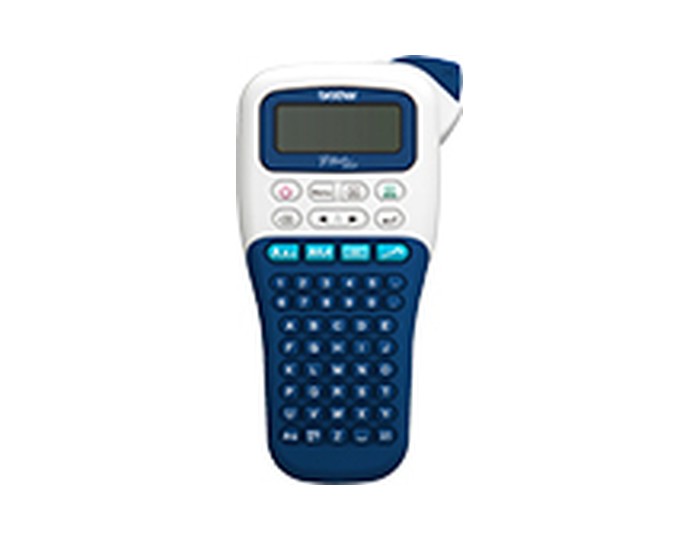
The checks and guides below come from the official manuals for this model.
No matches for this wording. Try a light name, error code or a shorter phrase.
Errors and messages
Messages and indicator states from the manual Low Battery!batteries are weak
Replace all six alkaline AAA batteries together, or fully recharge compatible Ni-MH batteries.
Battery Deadbatteries are exhausted
Replace the exhausted alkaline batteries or recharge the Ni-MH set before retrying.
Invalid!label length is invalid
Enter a valid number for the label length. This warning is not used by Auto Designs.
No Text!no label text is available
Enter text before previewing, printing, opening Cable Label, or using DECO MODE or Auto Designs. Store a label before trying to print a saved file.
Line Limit!tape is too narrow for two lines
Keep the text to two lines, and use 9 or 12 mm tape for two-line labels. Delete a third line if one was entered, or fit wider tape when two lines are on 3.5 or 6 mm tape.
No Cassette!tape cassette is missing
Fit a compatible Brother TZe tape cassette and close the cassette cover before printing.
Cutter Errorcutter pressed during printing
Release the cutter lever and let printing finish before cutting the label.
Text Full!text exceeds the character limit
Shorten the text. The normal limit is 80 characters; Auto Designs and DECO MODE allow 50.
Text Limit!text exceeds the selected label length
In DECO MODE, shorten the text. In other modes, shorten it or choose Auto label length.
No Frame OK?frame cannot print on 3.5 mm tape
Press Print to continue without a frame, or Backspace to cancel and choose another tape or frame setting.
OK to Feed?chain Print is waiting to feed tape
After the final label in a chain, press Print to feed the tape, then use the cutter lever. Cutting before feeding can remove part of the text.
Insert 12mmdECO MODE needs 12 mm tape
Fit a 12 mm Brother TZe cassette before using DECO MODE.
Wrong Tape!tape cassette type is unsupported
Use a Brother TZe cassette with the mark shown in the manual.
Troubleshooting
Find the problem you are experiencingDisplay stays blankView
Check the orientation of all six batteries and replace a weak set.
Printed labels have too much marginView
Choose Half or Narrow under Margin. For several labels, use Chain Print, feed after the last label and then cut.
Label does not print or characters are malformedView
Seat the cassette correctly, replace it if empty and close the cassette cover firmly.
Settings clear on their ownView
Replace weak batteries and maintain suitable power. Disconnecting power for more than three minutes clears text, formatting, saved files, language and unit settings.
A blank horizontal line crosses the labelView
Switch off and remove the batteries and cassette. Gently wipe the print head vertically with a dry cotton swab, then refit the cassette and batteries.
Label maker stops respondingView
Turn it off. Hold Menu and R, press Power, then release Menu and R. This resets internal memory and clears stored files, text and settings.
Power turns off when printing startsView
Replace weak batteries and check that all six cells are inserted correctly.
Tape will not feed or jamsView
Route the tape end under its guides. Do not press the cutter while printing and do not pull the tape from the label maker.
Clear text and formatting for a new labelView
Press Backspace, choose Text&Format and confirm to clear the current label.
Display uses the wrong languageView
Open Menu, select Language, choose the desired display language and confirm with Print.
Print cable labels3 steps
- Use Brother Flexible ID tape for a two-line cable label.
- Enter the text, choose Cable from the menu and confirm printing.
- This mode automatically uses Auto label length and Full margins; follow the tape’s insertion sheet for application conditions.
Guides
Power supply and tape cassette
Instructions from the manualInstall batteries and tape5 steps
- Switch off before opening the cassette cover.
- Fit six AAA alkaline batteries or fully charged Ni-MH batteries with the shown polarity.
- Use one type throughout and replace all six together.
- Seat a TZe cassette until it clicks, route the tape end under the guides and close the cover.
- Never touch the cutter blade.
Replacing the cutter unit
Instructions from the manualReplace a blunt tape cutter3 steps
- If a new cassette still does not cut cleanly, replace the TC-4 cutter.
- Pull out its two green sections in the arrow direction and push the replacement until it snaps into place.
- Keep fingers away from the blade.