MODEL REFERENCE
Brother QL-800
9 errors · 20 troubleshooting topics
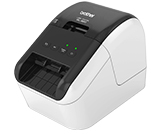
The checks and guides below come from the official manuals for this model.
No matches for this wording. Try a light name, error code or a shorter phrase.
Errors and messages
Messages and indicator states from the manual End of DK Rollthe label roll has run out
Check the roll and install one with labels remaining.
Feed errorthe label roll is not feeding
Reseat the DK roll and check that it is installed correctly.
The DK Roll Compartment Cover was opened while the Label Printer was in use.the roll cover opened during printing
Close the DK roll compartment cover securely before printing again.
No media errorno usable DK roll is detected
Install the correct DK roll and close the cover.
Incorrect media errorthe DK roll does not match the job
Check the DK roll type and select its size in the print settings.
Communication command errorthe print command was not received correctly
Restart the label printer, then reconnect the cable if the error returns.
Two-color media high resolution printing errorthe selected print mode is incompatible with two-color media
Change the print quality or media setting before sending the job again.
Cutter errorthe cutter cannot complete its cycle
Keep the cover closed, press Power, then remove jammed labels after the printer switches off.
System errorthe printer reports a system fault
Restart the label printer and contact Brother if the error persists.
Troubleshooting
Find the problem you are experiencingThe Label Printer does not print, or a printing error is receivedView
Check the cable, DK roll, remaining labels, and roll cover; restart the printer if the error remains.
The Status LED is not litView
Check the power cord and try another outlet if it is firmly connected.
The printed label contains streaks or poor quality characters, or the label is not fed correctlyView
Clean the roller if lint or dirt is affecting the print head or label feed.
A data transmission error appears on the computerView
Wait until the orange Status LED stops flashing, then print again.
The label is not ejected correctly after printingView
Clear the output slot, reseat the DK roll, and close the compartment cover.
I want to cancel the current printing jobView
With the printer powered on, press the Power button to cancel the job.
The print quality is poorView
Clean lint and dirt from the roller with the appropriate cleaning sheet.
After replacing the Roll while the Add-In feature was activated, the layout style was not updatedView
Close P-touch Editor, then reactivate the Add-In.
The P-touch Add-In icon is not displayed in Microsoft® WordView
Exit Outlook and restart Word if Word was launched through Outlook.
Cutter does not return after a jamView
Keep the roll cover closed and press Power, then clear jammed labels after the printer switches off.
I want to reset the Label PrinterView
Use the Power and Cutter buttons in the sequence specified in the manual to restore factory settings.
Printed barcodes cannot be readView
Align the barcode with the print head and use the print-quality setting recommended in the manual.
A white vertical line appears when printed in redView
Remove the roll, close the cover, run the platen roller with Editor Lite, then reload the roll.
I want to feed the labelView
Hold the Feed button for one second.
I do not know the version number of the firmware for the Label PrinterView
Turn on the printer and hold the Cutter button to print its firmware report.
I want to confirm whether I am using the latest version of the softwareView
Use P-touch Update Software to check the installed software version.
Received data in bufferView
Restart the printer if it is waiting for incomplete print data.
Head is cooling downView
Let the thermal head cool and keep the printer well ventilated.
Label Printer is in boot modeView
Contact a Brother dealer or Brother Customer Service for help.
DK Roll errorsView
Check that the correct DK roll is installed and has labels remaining.