MODEL REFERENCE
Roborock S6
22 errors · 15 troubleshooting topics · 7 guides
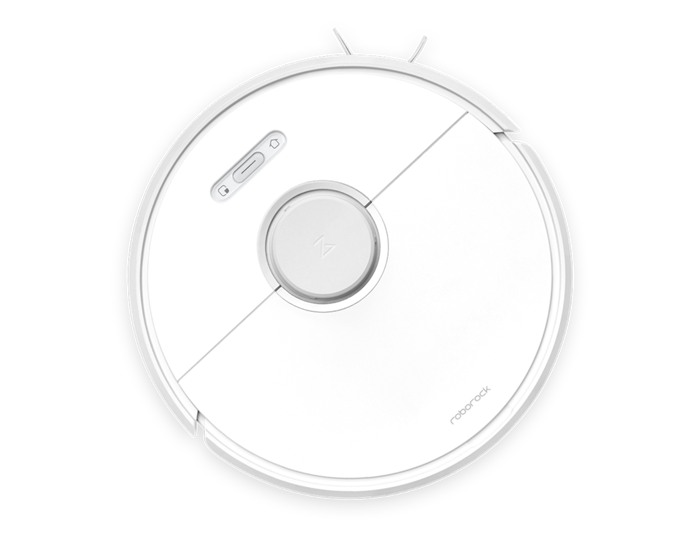
The checks and guides below come from the official manuals for this model.
No matches for this wording. Try a light name, error code or a shorter phrase.
Errors and spoken alerts
Spoken error numbers documented in the manual Error 1laser scanner is blocked
Remove anything obstructing the laser scanner, move the robot to another position, and restart it.
Error 2bumper is stuck
Lightly tap the bumper several times to free trapped debris. If nothing comes out, move the robot elsewhere and restart.
Error 3a wheel is suspended
Move the robot onto a suitable floor location and restart it.
Error 4cliff sensors or raised edges need checking
Move the robot away from drops to another level area and restart it. Switch off and wipe dirty cliff sensors with a soft dry cloth.
Error 5main brush is tangled
Switch off the robot before maintenance. Remove the main brush, clear hair and debris from the brush and its bearings, and refit it.
Error 6side brush is tangled
Switch off the robot, remove the side brush, clear trapped hair and dirt, and refit it.
Error 7main wheels are jammed
Switch off and clear anything tangled around the main wheels. Move the robot to another location and restart it.
Error 8robot is trapped
Clear the obstacles around the robot so it can move freely.
Error 9dustbin or filter is not fitted
Refit the dustbin and filter and check their seating. Replace the filter if the alert persists.
Error 10filter is wet or blocked
Clean a blocked filter and let a wet filter dry thoroughly for at least 24 hours before refitting. Replace it if the alert remains.
Error 11magnetic boundary tape is too close
Move the robot away from the magnetic boundary tape to a new location and restart.
Error 12battery is too low
Charge the robot on its dock before trying to clean again.
Error 13charging contacts need cleaning
Switch off the robot and unplug the dock before cleaning. Wipe the robot and dock charging contacts with a dry cloth, then reconnect and retry.
Error 14battery temperature is abnormal
Wait until the battery returns to its normal temperature before retrying. Do not open or repair the battery.
Error 15wall sensor is blocked
Switch off and wipe dust from the wall sensor with a soft dry cloth.
Error 16robot is tilted
Put the robot on a level floor and restart it.
Error 17side-brush module fault
Press the system Reset button. This clears cleaning schedules, Wi-Fi and other settings; configure them again afterward. Contact Roborock if the fault remains.
Error 18vacuum fan fault
Use the system Reset button, then restore the schedules and Wi-Fi settings it clears. Contact Roborock if resetting does not resolve the fault.
Error 21height sensor is pressed or stuck
Move the robot to a different location and restart it.
Error 22recharge sensor is dusty
Switch off the robot and wipe dust from its recharge sensor with a soft dry cloth.
Error 23dock signal area is obstructed
Clear the charging dock’s signal-transmitting area and retry docking.
Internal errorinternal system error
Reset the robot using its recessed Reset button. This clears schedules, Wi-Fi and related settings. Contact Roborock if the fault remains.
Troubleshooting
Find the problem you are experiencingRobot will not turn onView
Charge the robot on its dock if the battery is low. Use it only between 4°C and 40°C; wait for the battery temperature to return to that range.
Robot will not chargeView
Check both ends of the dock’s power cable. Switch the robot off and unplug the dock before wiping dirty contacts with a dry cloth. Reconnect and check the dock power indicator.
Charging is slowView
At high or low temperatures the robot slows charging to protect its battery. Switch it off and unplug the dock before cleaning dirty contacts with a dry cloth.
Robot cannot return to its dock3 steps
- Clear obstacles around the dock and place it in an open area.
- Bring the robot closer and retry.
- Keep 0.5 m clear on each side and 1.5 m in front of the dock, with its beacon unobstructed.
Robot behaves abnormallyView
Restart the robot.
Robot makes noise while cleaningView
Switch the robot off. Clear hair and debris from the main brush, side brush and main wheels. Remove and clean a jammed omnidirectional wheel as shown in the wheel guide.
Cleaning is poor or dust falls outView
Empty the dustbin, clean the filter and remove debris from the main brush. Switch off before maintenance and dry a washed filter for at least 24 hours.
Robot will not connect to Wi-Fi3 steps
- Use a strong 2.4 GHz Wi-Fi signal.
- Open the cover and hold Spot Clean and Recharge together until the Reset Wi-Fi voice prompt sounds and the indicator flashes slowly.
- Add the robot again in Mi Home and update the app if connection still fails.
Scheduled cleaning does not startView
Charge the battery above 20% before the scheduled cleanup.
Robot draws power while dockedView
A docked robot draws a small amount of power to maintain its battery; the manual describes this as normal.
First charge durationView
One full charge is enough before first use. Three special 16-hour charges are not required.
Mopping produces little or no waterView
Fill the water tank, move its flow-control switch to high, rinse the mop cloth and check its installation. Replace the water-filter elements when needed.
Floors are too wet after moppingView
Close the water-tank seal, choose low flow and check both water-filter elements are installed correctly.
Cleaning does not resume after chargingView
Disable Do Not Disturb mode before expecting cleaning to resume. Manual recharging or placing the robot on its dock ends automatic cleaning resumption.
Robot cannot dock after spot cleaning or being movedView
After spot cleaning or a large position change, the robot regenerates its map. If it cannot locate a distant dock, place it on the dock manually.
Guides
Main brush
Instructions from the manualClean the brushes and front wheel5 steps
- Switch off before maintenance.
- Unlatch the main-brush cover, remove the brush, clean its bearings and removable end cap, and cut away tangled hair with the supplied tool.
- Refit it and latch the cover.
- Unscrew, clean and refit the side brush.
- Pull out the front wheel, remove hair from its axle, rinse and dry it before refitting; do not remove the wheel bracket.
Dustbin and filter
Instructions from the manualClean the dustbin and washable filter3 steps
- Empty the bin and remove its filter.
- Rinse with clean water only; use no detergent or brush against the filter.
- Rinse and tap the filter frame to release dirt, then dry it for at least 24 hours before refitting.
Using the mop
Instructions from the manualInstall and maintain the mopping module6 steps
- Dampen the reusable mop cloth, squeeze it out and slide it fully into the tank slot.
- Alternatively, secure a disposable cloth to its supplied plate.
- Fill the tank with plain water, close its cover, choose the physical high or low flow setting and slide the module onto the robot until it clicks.
- Keep carpets behind barrier tape.
- After cleaning, remove the module, empty unused water and wash and dry the reusable cloth.
- Replace blocked water-filter elements.
Reset system
Instructions from the manualReset the robot3 steps
- Press the recessed Reset button if controls stop responding or shutdown fails.
- Schedules, Wi-Fi and related settings are cleared.
- If the fault persists, hold Recharge and press Reset, keeping Recharge held until Start restoring initial version sounds to restore factory settings.
Main unit sensors
Instructions from the manualClean sensors and charging contacts2 steps
- Switch off and unplug the dock before cleaning.
- Use a soft dry cloth on all six cliff sensors, the right wall sensor and charging contacts; keep the dock’s signaling area unobstructed.
Firmware update
Instructions from the manualUpdate firmwareView
Use Mi Home to update the firmware while the robot is on its charging dock with battery charge above 20%.
Holiday energy saving function
Instructions from the manualUse holiday energy-saving mode3 steps
- With the robot docked, hold Recharge for ten seconds until Ding-dong sounds.
- Its light dims and cleaning, wireless control and other non-charging functions are disabled.
- Hold Recharge for another ten seconds until the light brightens to leave this mode.
Model details
Model and compatibility
- Charging dock
- Use the original compatible CDZ08RR or CDZ09RR dock. The S6 Pure docks listed in another manual are not substituted here. [1]
- Wireless network
- Mi Home setup uses a 2.4 GHz Wi-Fi network, rather than a 5 GHz-only network. [1]
- Mop cloth
- Use the reusable mop cloth or a disposable cloth fitted to its supplied plate. Set water flow with the physical high/low control; clean reusable cloths after use. [1]