MODEL REFERENCE
TP-Link Archer A5 V5
15 errors · 10 troubleshooting topics · 6 guides
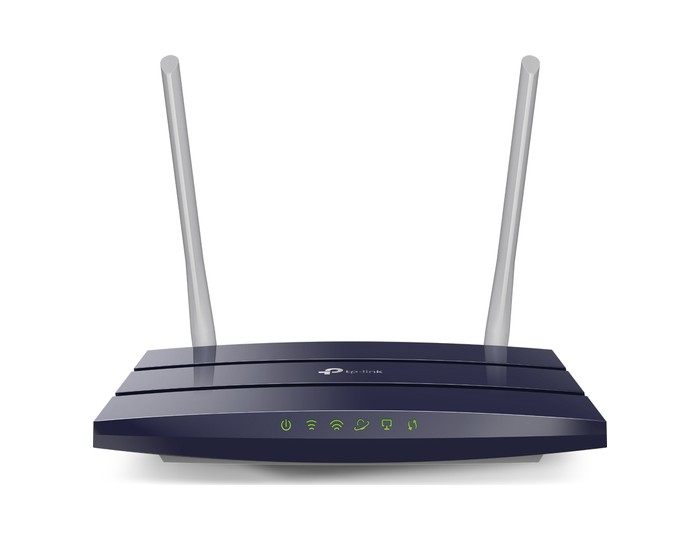
The checks and guides below come from the official manuals for this model.
No matches for this wording. Try a light name, error code or a shorter phrase.
Errors and indicators
Light patterns and messages documented in the manual Power: Onrouter started successfully
This is the normal powered-on state.
Power: Flashingstartup or firmware update is in progress
Wait for startup or the update to finish. Keep power connected during a firmware update.
Power: Offrouter has no power
Check the supplied adapter, power socket and Power button.
2.4 GHz: On2.4 GHz wireless is enabled
This radio is available for compatible devices.
2.4 GHz: Off2.4 GHz wireless is disabled
Enable the radio in Wireless settings or hold WPS/Wi-Fi for about three seconds to toggle wireless.
5 GHz: On5 GHz wireless is enabled
This radio is available for compatible devices.
5 GHz: Off5 GHz wireless is disabled
Enable the radio in Wireless settings or hold WPS/Wi-Fi for about three seconds to toggle wireless.
Internet: Green Oninternet service is available
This is the connected internet state.
Internet: Orange OnwAN cable connected but internet unavailable
Check WAN status and follow the connection-type, DNS, modem restart and address-conflict checks below.
Internet: Offinternet port has no connection
Check the cable between the modem and the router’s Internet port.
Ethernet: Ona powered wired device is connected
At least one LAN port is connected to a powered device.
Ethernet: Offno powered wired device is connected
Check the device’s power and Ethernet cable if a wired connection is expected.
WPS: OnwPS connection succeeded
The connection has been established.
WPS: FlashingwPS negotiation is in progress
Allow up to two minutes for the client to connect.
WPS: OffwPS indicator has timed out or pairing failed
An established connection stops lighting this indicator after five minutes. If pairing failed, repeat the WPS procedure.
Troubleshooting
Find the problem you are experiencingWireless password is forgottenView
The original wireless password is on the router label. If it was changed, connect by Ethernet, sign in at tplinkwifi.net and open Wireless, Wireless Security to view or replace it.
Router login password is forgottenView
Factory-reset the router and create a new login password at tplinkwifi.net. A reset erases configuration, so complete internet setup again afterward.
Router management page will not open5 steps
- Check the connection and corresponding LED.
- Set the computer to obtain its IP address and DNS automatically, then open tplinkwifi.net.
- In the legacy Windows Internet Options described in the guide, select Never dial a connection and clear the three LAN proxy/automatic-configuration options.
- Restore advanced browser settings, try another browser or computer, and reset only if necessary.
- Contact TP-Link if access still fails.
Extend wireless coverage using WDS4 steps
- On the extending router, set a LAN address in the main router’s subnet that does not duplicate another device.
- Reopen management using the changed address.
- Under Wireless, Basic Settings enable WDS, scan for the main SSID, connect and enter its password.
- Disable DHCP on the extending router, save and verify that WDS status is Run.
Internet fails despite a valid WAN address4 steps
- Check DNS; the guide provides 8.8.8.8 as a primary DNS example under DHCP.
- Switch off modem and router for one minute, start the modem and wait about two minutes, then start the router and wait another one or two minutes.
- If needed, reconfigure after a reset or update matching firmware.
- If other devices work, check TCP/IP settings on the affected device.
WAN address is 0.0.0.04 steps
- Check the modem cable and internet connection type supplied by your ISP.
- If the ISP registered the original computer’s MAC address, use Network, MAC Clone from that computer.
- If modem and router LAN ranges conflict, change Network, LAN to a different subnet.
- Restart modem first and then router, and check matching firmware if the problem persists.
Device cannot find any wireless networks3 steps
- Enable its wireless adapter and check its driver.
- On Windows 7 use the troubleshooting prompt.
- For the legacy Windows XP case in the guide, exit conflicting wireless tools and start Wireless Zero Configuration with Automatic startup in Computer Management.
Device sees other networks but not this routerView
Check the router’s WLAN indicators and enable its wireless radio if required. Move the device within range.
Wireless password or PIN is rejected2 steps
- A WPS PIN differs from the Wi-Fi password.
- Choose connection using a security key if the PIN is unavailable or fails, and enter the case-sensitive wireless password from the router settings.
Wireless network cannot be joinedView
Move closer if signal strength is weak. Try channel 1, 6 or 11 to reduce interference on 2.4 GHz, then reinstall or update the client’s wireless adapter driver.
Guides
Get to know about your router
Instructions from the manualFactory-reset the routerView
With power on, hold the separate Reset button for two seconds until all LEDs turn off. Configuration is erased; set up the internet and wireless network again.
Pair a device with WPS3 steps
- Press WPS/Wi-Fi for one second, then immediately press WPS on the client.
- A flashing WPS indicator should become steadily lit after success.
- Holding the router button for about three seconds toggles wireless instead.
Configure the router in wireless router mode
Instructions from the manualUpdate firmware safely3 steps
- Download firmware for the exact Archer A5 hardware version and region.
- In System Tools, Firmware Upgrade, choose the downloaded file and start the update.
- Keep power connected until completion.
Save and restore configuration3 steps
- Open System Tools, Backup & Restore and save a backup before changing settings.
- To restore, select the saved file and restore it without interrupting power.
- A factory-default restore erases your settings.
Run Ping or Traceroute diagnosticsView
Open System Tools, Diagnostic, choose Ping or Traceroute, enter the destination address or domain and start. Check the displayed result to identify connection problems.
Set up Access Point mode4 steps
- Connect the existing router’s LAN port to the C50 Internet port, then sign in at tplinkwifi.net.
- Choose Operation Mode, select Access Point and click Save.
- Restart when prompted, then configure the wireless settings.
- Connect the existing router’s LAN port to the C50 Internet port as shown for Access Point mode.
Model details
Model and compatibility
- Hardware version
- This reference covers Archer A5 V5 using the regional manufacturer download listing. Match hardware version and region before updating firmware. [1]
- Ports
- The router has one Internet port and four Ethernet LAN ports. [1]
- Wireless bands
- Separate 2.4 GHz and 5 GHz indicators show whether each wireless band is enabled. [1]