MODEL REFERENCE
MERCUSYS Halo H1500X V1
2 errors · 17 guides

The checks and guides below come from the official manuals for this model.
No matches for this wording. Try a light name, error code or a shorter phrase.
Errors and indicators
Light patterns and messages documented in the manualFind the indicator lights
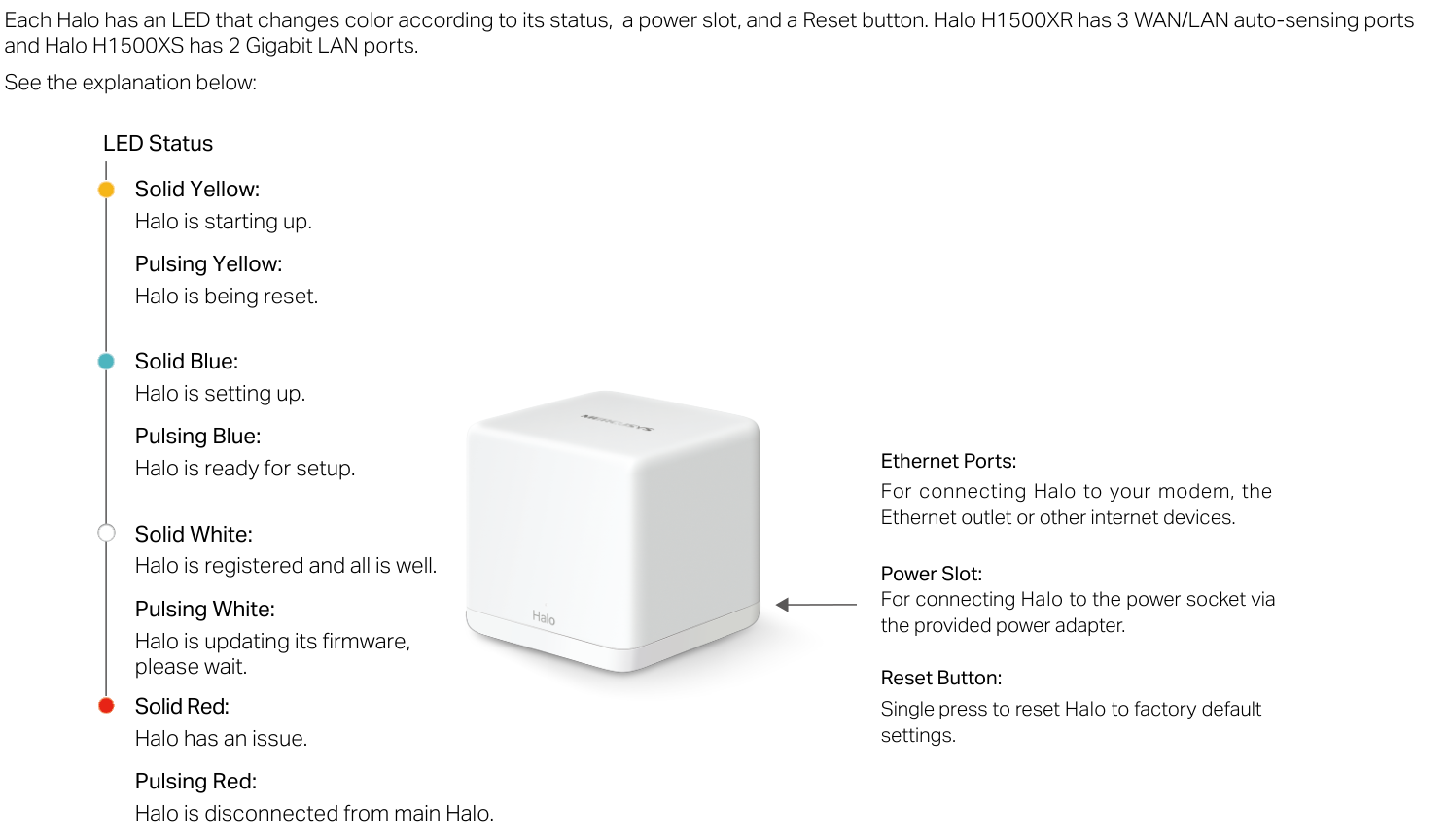
Diagram key
- Solid Yellow: Halo is starting up.
- Pulsing Yellow: Halo is being reset.
- Solid Blue: Halo is setting up.
- Pulsing Blue: Halo is ready for setup.
- Solid White: Halo is registered and all is well.
- Pulsing White: Halo is updating firmware; wait.
- Solid Red: Halo has an issue.
- Pulsing Red: Halo is disconnected from the main Halo.
- Yellow marker: Groups the printed solid and pulsing yellow states.
- Blue marker: Groups the printed solid and pulsing blue states.
- White marker: Groups the printed solid and pulsing white states.
- Red marker: Groups the printed solid and pulsing red states.
- Ethernet Ports: H1500XR has three WAN/LAN auto-sensing ports; H1500XS has two Gigabit LAN ports. The generic connection text covers a modem, Ethernet outlet or other internet devices; the satellite ports remain LAN-only.
- Power Slot and arrow: Connect to the power socket with the provided adapter. The printed arrow belongs to this label.
- Reset Button: A single press resets Halo to factory default settings.
Solid Redhalo has an issue
- Halo has an issue.
- The complete operation guide supplies no indicator-specific repair sequence.
- Contact MERCUSYS support for technical assistance or service; do not disassemble, repair or modify the device.
Pulsing Redhalo disconnected from the main Halo
- Halo is disconnected from main Halo.
- The complete operation guide supplies no indicator-specific repair sequence.
- Contact MERCUSYS support for technical assistance or service; do not disassemble, repair or modify the device.
Guides
About this guide
Instructions from the manualGuide scope and compatibility7 steps
- This reference uses the exact EU V1 Halo H1500X operation guide linked by MERCUSYS.
- Features vary by model, software, region and ISP; its illustrated screens and descriptions are examples.
- Halo H-series and S-series units cannot work together.
- Seamless roaming requires 802.11k/v/r clients and may require additional setup; performance varies by client.
- MU-MIMO requires compatible clients.
- Maximum wireless signal rates are physical IEEE rates; actual throughput, coverage and connected-device counts are not guaranteed and depend on network conditions, client limitations, building materials, obstacles, traffic volume and density, and client location.
- Use MERCUSYS support for technical help; product-specific information is on its official product page.
Appearance
Instructions from the manualRead all eight indicator states4 steps
- Solid yellow means starting up; pulsing yellow means being reset.
- Solid blue means setting up; pulsing blue means ready for setup.
- Solid white means registered and all is well; pulsing white means updating firmware, so wait.
- Solid red means a Halo issue; pulsing red means disconnected from the main Halo.
Connections and factory reset5 steps
- H1500XR has three WAN/LAN auto-sensing ports; H1500XS has two Gigabit LAN ports.
- Do not treat the satellite ports as WAN ports.
- The guide describes Ethernet connections for a modem, Ethernet outlet or other internet devices.
- Connect the power slot using the provided power adapter.
- A single press of Reset restores factory defaults.
Set up your halo
Instructions from the manualSet up and expand the Halo network7 steps
- Download MERCUSYS from Google Play or the Apple App Store, or scan the guide’s QR code, and install the app on a phone or tablet.
- Open the app and log in with your Mercusys ID.
- If you do not have one, tap Sign Up and follow the app.
- Tap LET’S BEGIN and follow the app’s ordered instructions to connect and configure Halo.
- After completion, connect client devices to the Halo network.
- Use the top-right + button to add more Halos.
- Powering up other Halos supplied in the same pack lets them join automatically within two minutes; units from different packs require + in the app.
Rf exposure information
Instructions from the manualEU radio placement and exposure5 steps
- Keep the unit 20 cm from the body under the stated EU RF-exposure conditions.
- For 5150–5250 MHz, indoor use is inside buildings only; installations and use inside road vehicles and train carriages are prohibited.
- The band notice permits limited outdoor use only without attachment to a fixed installation, vehicle exterior, fixed infrastructure or fixed outdoor antenna; UAS use is limited to 5170–5250 MHz.
- Great Britain has a separate indoor-only restriction; keep that regional limitation and all safety guidance.
- The guide lists 2400–2483.5 MHz at 20 dBm and 5150–5250 MHz at 23 dBm maximum transmitted power.
Uk declaration of conformity
Instructions from the manualGreat Britain indoor restrictionView
Use the device only indoors in Great Britain. The UK declaration is available from MERCUSYS support.
Safety information
Instructions from the manualSafe use and when to stop10 steps
- Keep the device away from water, fire, humidity and hot environments.
- Do not disassemble, repair or modify it.
- Contact MERCUSYS if service is needed.
- Do not use damaged chargers or USB cables, unapproved chargers, or the device where wireless equipment is prohibited.
- Install the adapter near the equipment where it remains easily accessible.
- Use only manufacturer-provided power supplies from the original package; ask MERCUSYS if unsure.
- Operate at 0–40°C (32–104°F).
- Keep both product and adapter more than 15 cm (6 inches) from pacemakers and other implanted medical devices.
- If interference is suspected, switch the product off and consult the physician for that medical device.
- Read and follow all safety information and use the product with care; improper use can cause accidents or damage.
Explanation of the symbols on the product label
Instructions from the manualRead the complete generic product-label key6 steps
- The product label is underneath the device.
- Symbols vary by product; this generic key does not establish which symbols appear on an individual unit.
- The key explains Class II equipment, Class II equipment with functional earthing, alternating current, DC voltage, polarity of output terminals, indoor use only and dangerous voltage.
- The continuation explains electric-shock caution, energy efficiency marking, protective earth, earth, frame/chassis, functional earthing, hot-surface caution, caution, operator’s manual, standby, ON/OFF push-push, fuse and a fuse in neutral N.
- It continues with WEEE recycling, avoiding high-volume listening for long periods, disconnecting all power plugs, m for mini-gap construction, µ for a micro-gap US switch or micro-gap/micro-disconnection outside the US, and ε for a semiconductor switch without a contact gap.
- Preserve the US/non-US qualification.
Recycle electrical equipment2 steps
- Handle the WEEE-marked product under European Directive 2012/19/EU so that recycling or dismantling minimizes environmental impact.
- Give it to a competent recycling organization or return it to the retailer when buying new electrical or electronic equipment.
Get started
Instructions from the manualQuick setup with an email accountView
Download the MERCUSYS app. Open it and register using an email address to create a Mercusys ID. Follow the app’s step-by-step Halo configuration instructions.
Led status
Instructions from the manualQuick-guide indicator cross-check4 steps
- Solid yellow means starting up; pulsing yellow means reset.
- Solid blue means setting up; pulsing blue means ready for setup.
- Solid white means registered and all is well; pulsing white means firmware updating, so wait.
- Solid red means an issue; pulsing red means disconnected from the main Halo.
English: safety information
Instructions from the manualQuick-guide safe use6 steps
- Keep the device away from water, fire, humidity and heat.
- Do not disassemble, repair or modify it; contact MERCUSYS for service.
- Do not use damaged chargers or USB cables or other than recommended chargers.
- Do not use it where wireless devices are prohibited.
- Keep the adapter nearby and easily accessible.
- Follow all safety information and use with care; misuse can cause accidents or damage.
English
Instructions from the manualCheck the local warranty4 steps
- The warranty applies to MERCUSYS-branded hardware in its original packaging for material and workmanship defects under normal use following its guidance.
- The local service determines its duration, starting at original retail purchase by the end user.
- Check MERCUSYS support for the local warranty period, policy and procedure.
- Legal rights vary by state, country or province; exclusivity of warranty remedies applies only to the extent local law allows.
Quick installation guide
Instructions from the manualQuick-guide support referral2 steps
- Use MERCUSYS official technical support for the applicable user guide and further information.
- The quick guide’s cover also prints a generic Halo FAQ referral; the PDF supplies no separate troubleshooting table or indicator-specific repair steps.
Specifications
Instructions from the manualUse the router and satellite in their verified roles5 steps
- H1500XR works as the router to access the internet; H1500XS works only as a satellite to extend coverage.
- Halo H-series units can form a mesh together; Halo H-series and S-series cannot work together.
- H1500XR has three Gigabit WAN/LAN ports; H1500XS has two Gigabit LAN-only ports.
- Only one WAN/LAN port may serve as WAN at a time.
- The two-pack contains one H1500XR, one H1500XS, one RJ45 Ethernet cable, two power adapters and the quick guide.
Wireless and client compatibility limits6 steps
- The specified physical signal rates are 1201 Mbps at 5 GHz and 300 Mbps at 2.4 GHz; these are not guaranteed throughput.
- Roaming requires 802.11k/v/r clients and may need additional setup.
- Actual throughput, coverage and device capacity depend on network conditions, clients and environmental factors.
- Wi-Fi 6, OFDMA, MU-MIMO, 1024-QAM and BSS Color need clients supporting each feature.
- Not all mandatory IEEE 802.11ax features are promised; additional software upgrades may be required.
- WPA3 requires WPA3 clients.
Automatically expand coverage
Instructions from the manualAutomatically add the included satelliteView
Configure the main router first. Power up the included add-on unit; it automatically joins the network to establish the whole-home mesh.
Model details
Model and compatibility
- Connections
- H1500XR: three WAN/LAN auto-sensing ports. H1500XS: two Gigabit LAN-only ports.
- Factory reset
- A single Reset press restores factory defaults.
- Operating temperature
- 0–40°C (32–104°F).